

How to backup contacts from Viewsonic ViewPad P100
PhoneCopy.com supports hundreds of phone models, including Viewsonic ViewPad P100. This guide will show you how to use it to create a safe backup of your contacts in just a few minutes.
Download PhoneCopy for Windows to your Windows, which you can download free of charge. After downloading and installation PhoneCopy icon will appear on your desktop.

Start the application and small PhoneCopy icon will appear on right bottom corner of your screen on status bar. When you will press this icon at first time you will be asked to fill your username and password. Any next icon click will start synchronization.

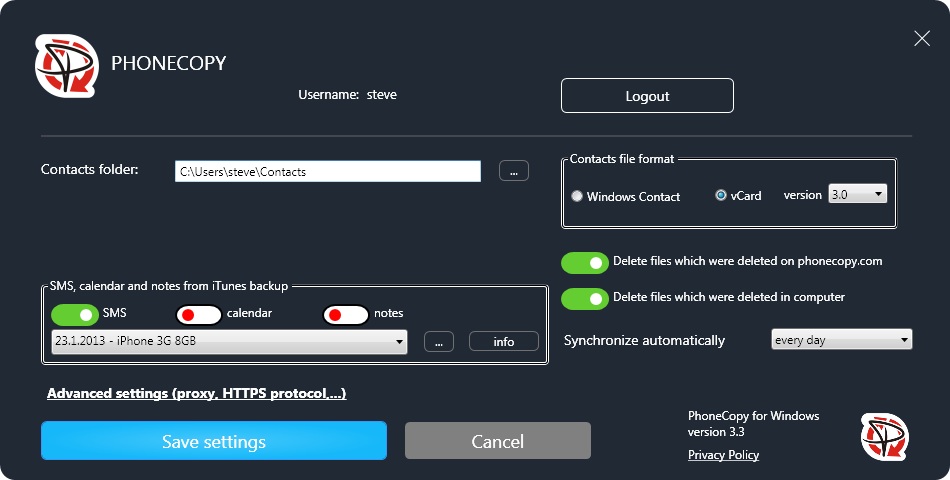
Start PhoneCopy for Windows. Fill your PhoneCopy username and password, select local directory to store contacts, and choose VCARD format which will be used (we recommend to use 3.0 which is pre-selected). Another option is to use native Windows Contacts format and synchronize directly to Contacts folder. Also you can set your proxy.
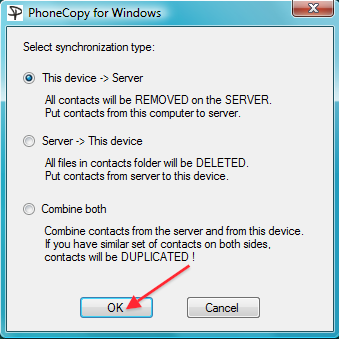
Now you can start the first synchronization on your Windows to transfer your contacts from/to PhoneCopy server. Also you have some contacts at PhoneCopy.com server, they will be copied to selected directory. Status bar icon is animated during synchronization process.
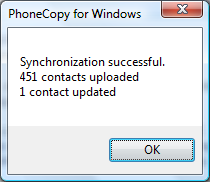
When synchronization finish you will get confirming message.
Your contacts are now safely stored in your PhoneCopy account. You can view and manage them online at any time, even if your phone is lost, damaged, or simply out of reach.
Some additional tips:
The free PhoneCopy plan allows you to store up to 500 contacts, which is more than enough for most users. A premium plan is available if you need to sync more data or use advanced features.