

How to backup contacts from Samsung Ativ Smart PC
In this tutorial, we show you how to use PhoneCopy.com to safely back up the contacts stored on your Samsung Ativ Smart PC. The service is free for personal use and works directly from your phone.
You need an PC with an operating system Windows 8, 8.1 or 10 and application PhoneCopy for Windows 8. You can find it in "Windows Store" in "Productivity" section, or just follow this link.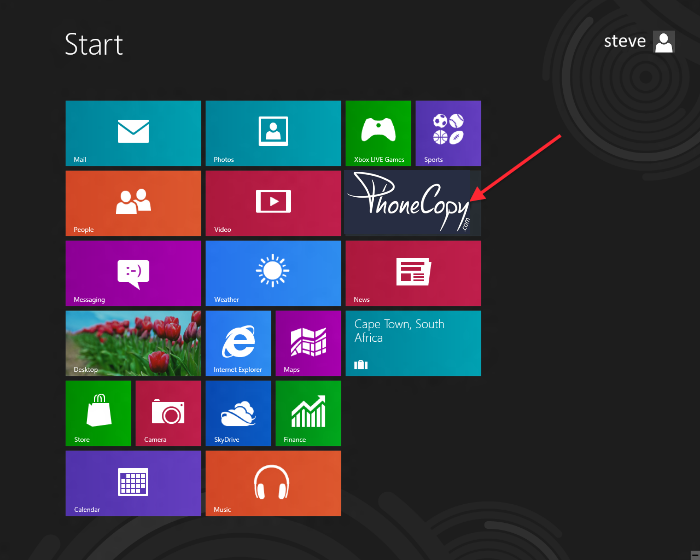
Synchronize contacts from your account on PhoneCopy to Windows 8
Open PhoneCopy application and read initial instructions.
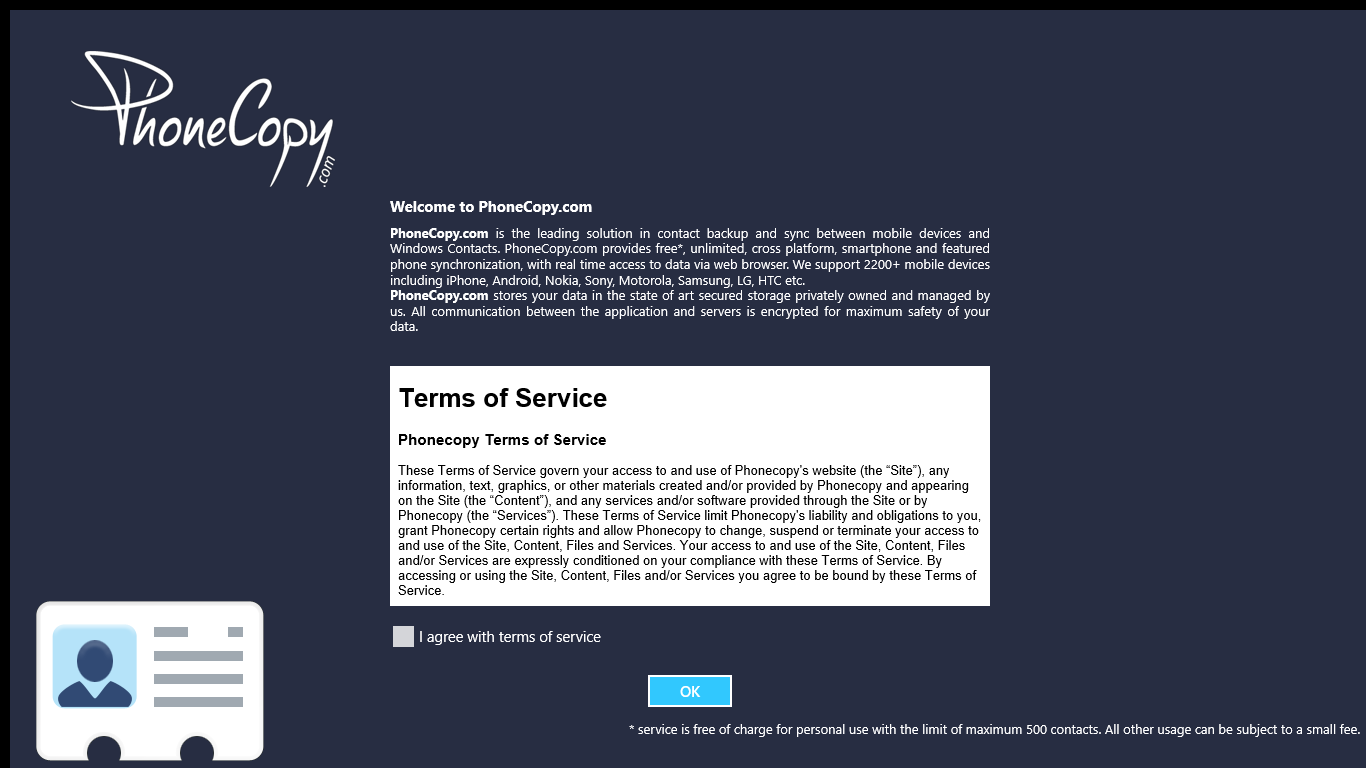
If you don't have an account on PhoneCopy.com, choose "Create new account". If you already have an account on PhoneCopy.com, choose "Use existing account".

When you create new account, you will see registration for. Fill all boxes and click to "Sign up".
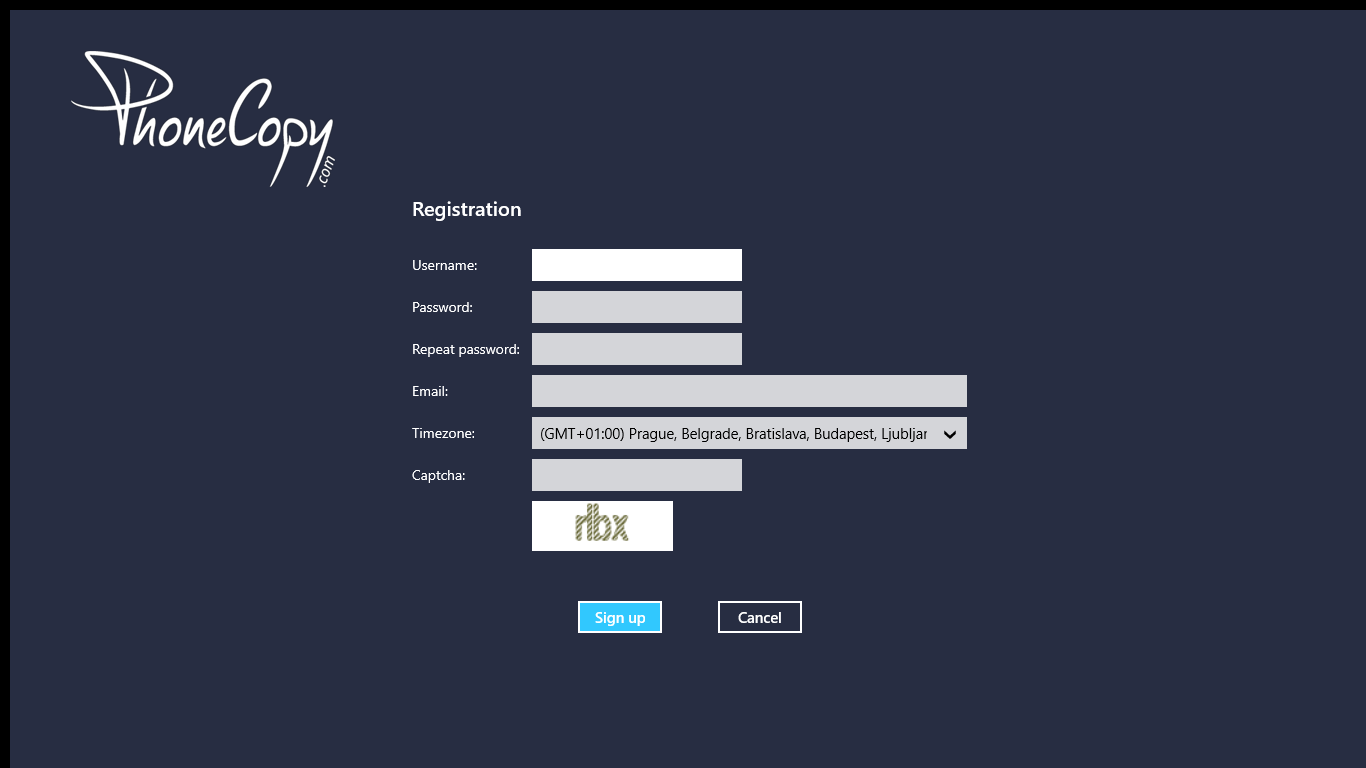
If you already have an account, fill your login credentials. "Pick folder" to select where will be your contacts stored.
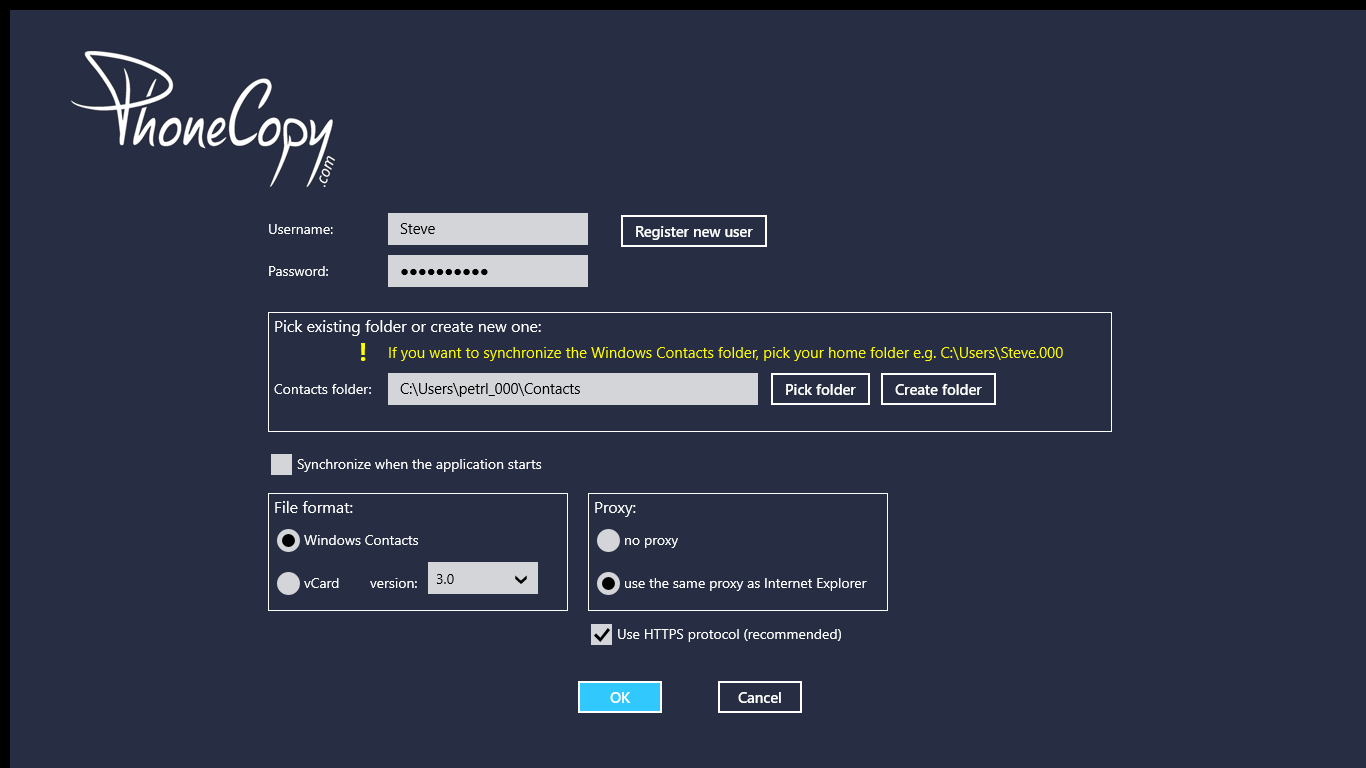
On next page start synchronization by pressing "Synchronize" button.
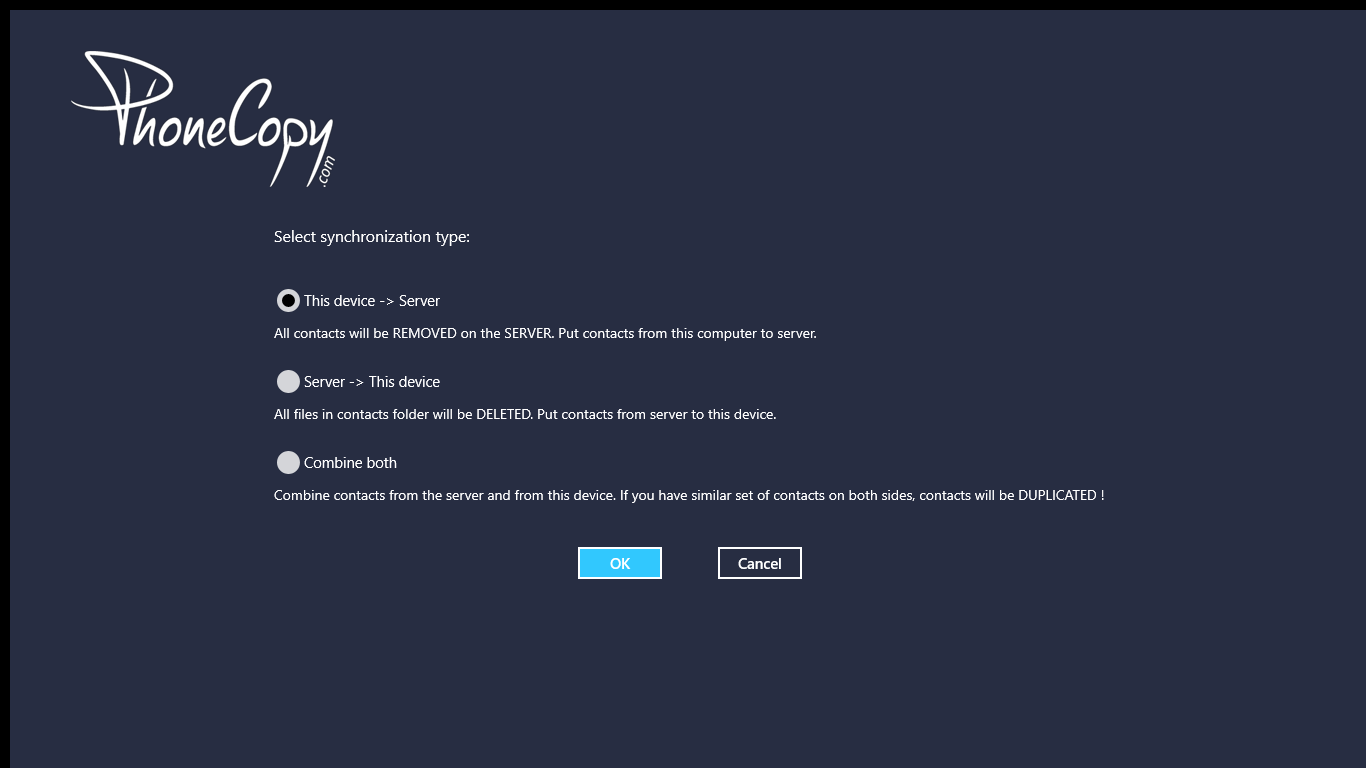
On first synchronization you will be asked for synchronization direction.
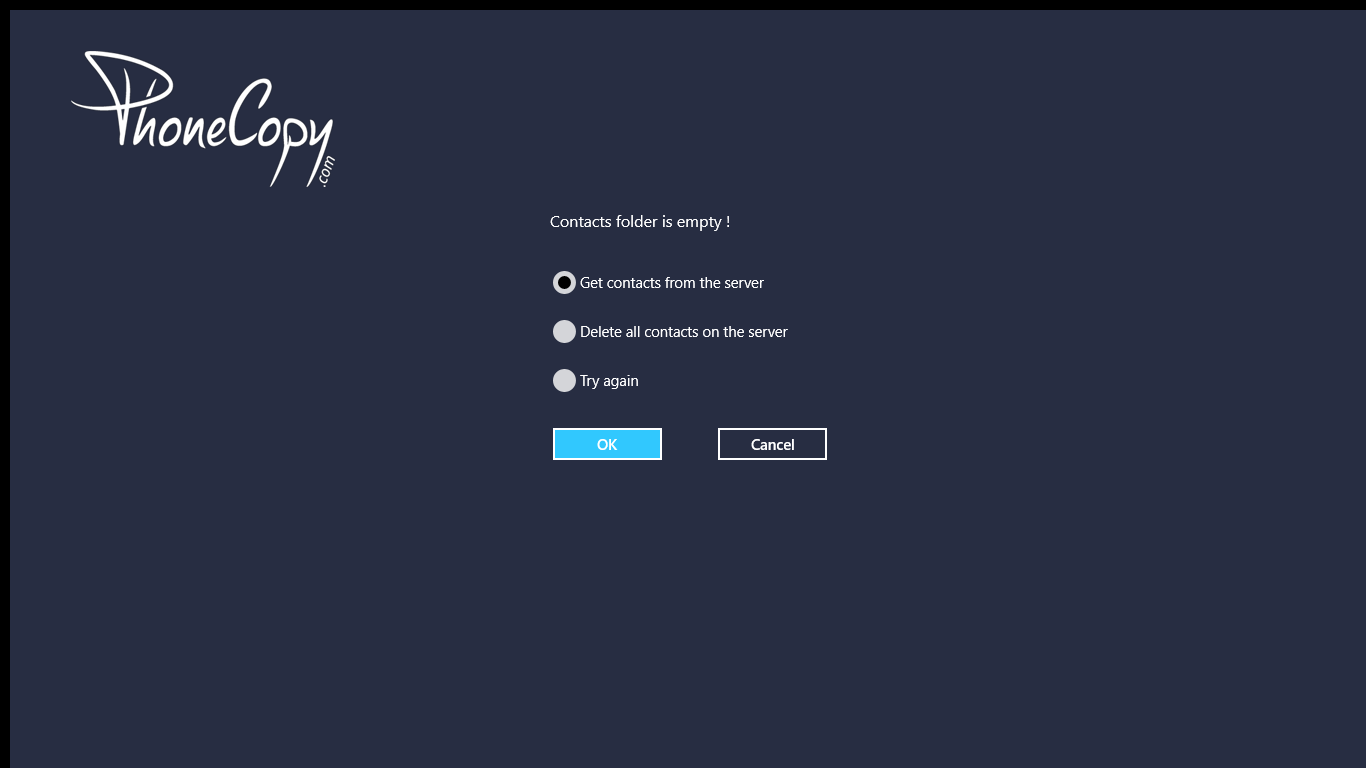
In case you don't have contact in selected source you will be noticed.
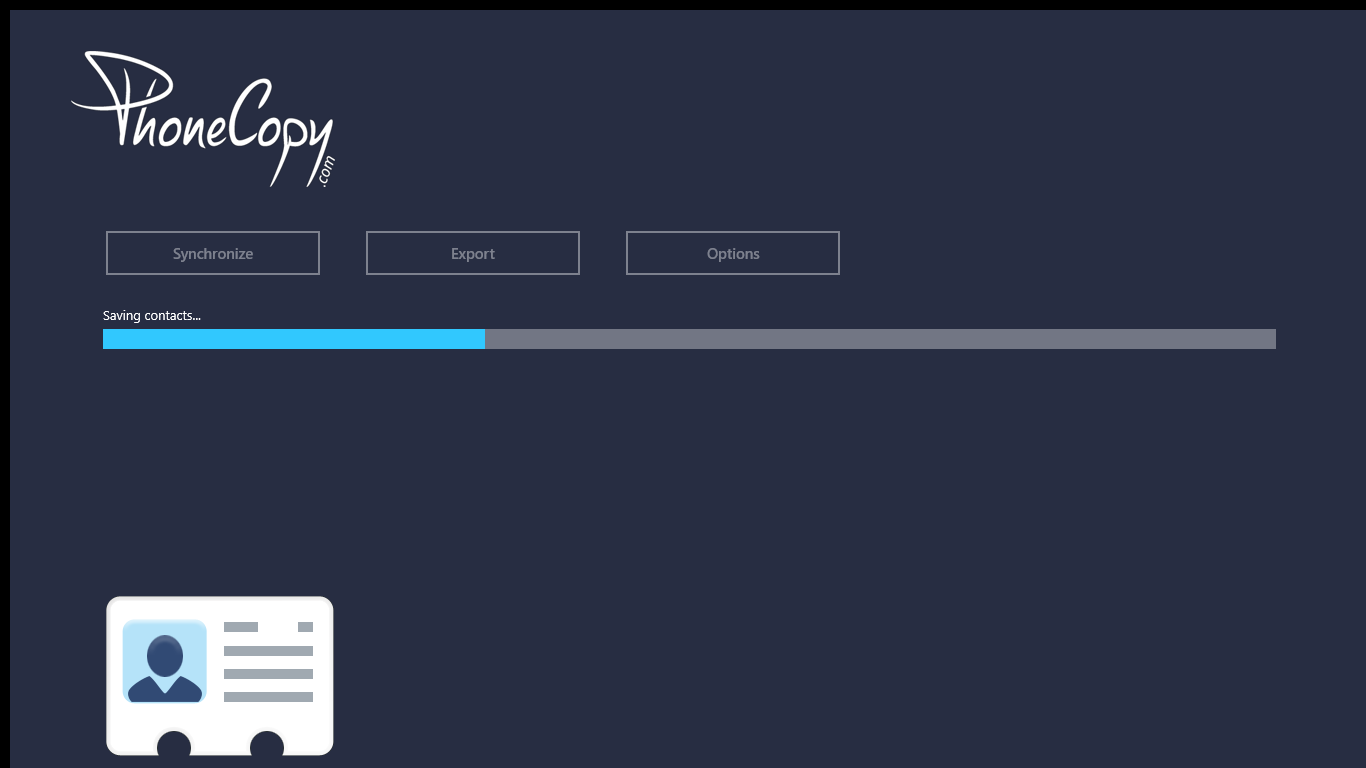
When you will add any contacts to selected directory you will see it synchronized to PhoneCopy after next sync.
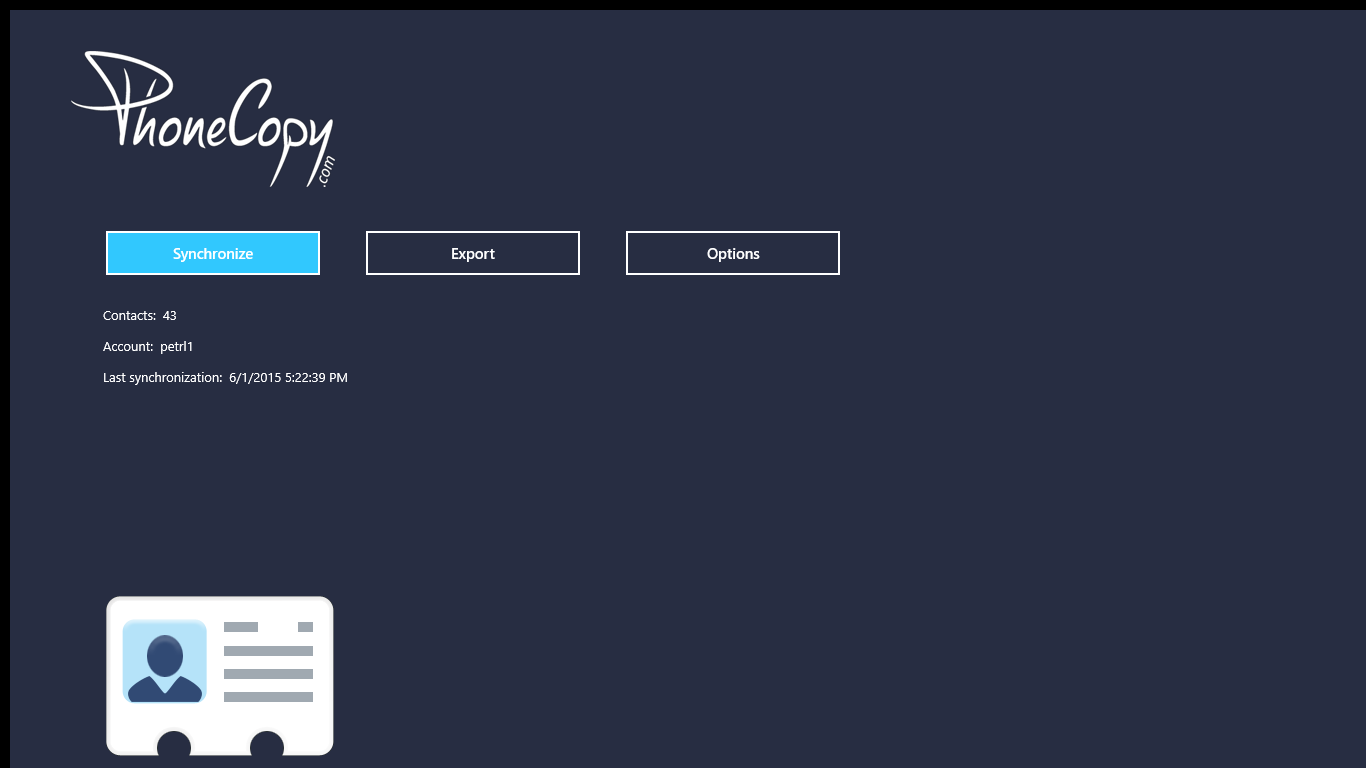
You can see page with information about your synchronization.
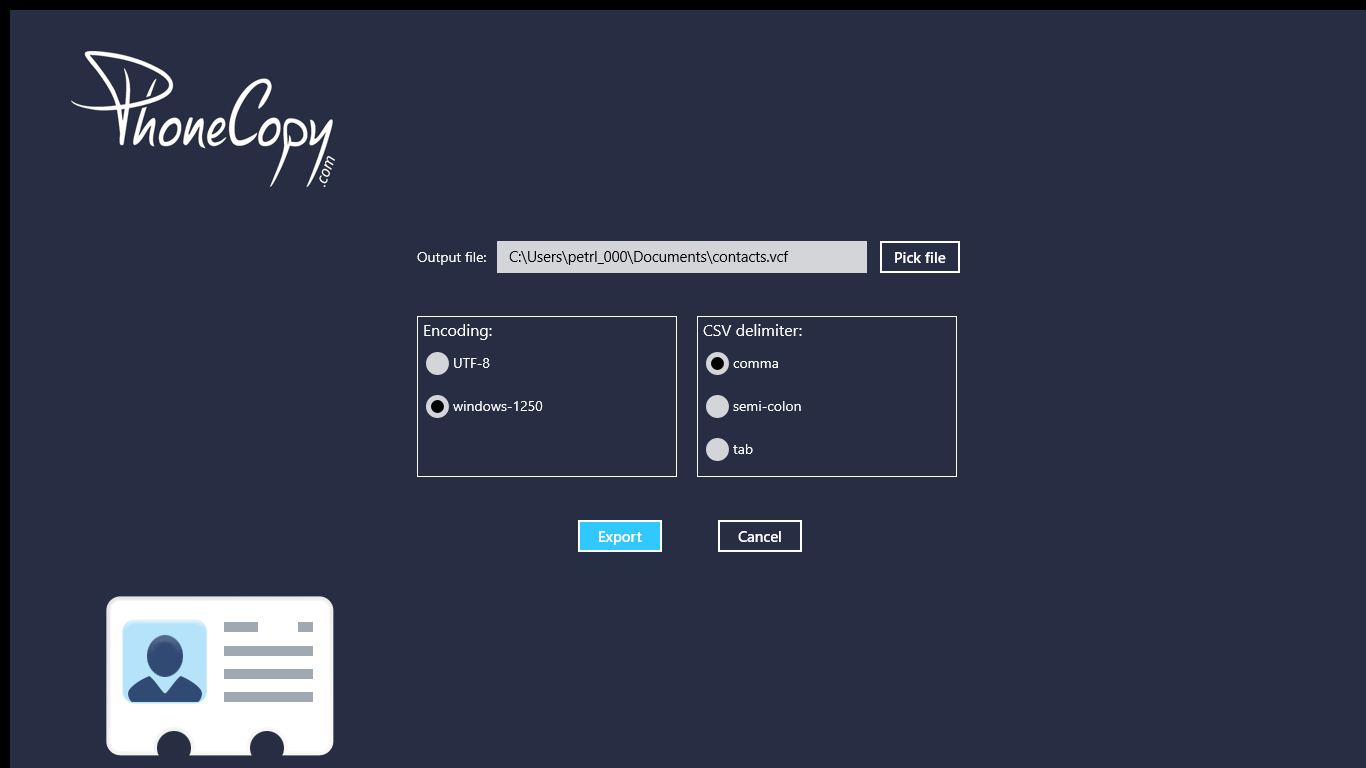
Now you can easily edit your contacts and other resources online in your PhoneCopy profile. You have access to your contact even if you forget your phone at home.
Some additional tips:
The free PhoneCopy plan allows you to store up to 500 contacts, which is more than enough for most users. A premium plan is available if you need to sync more data or use advanced features.