

How to backup contacts from Nokia 3110 classic
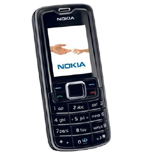
In this tutorial, we show you how to use PhoneCopy.com to safely back up the contacts stored on your Nokia 3110 classic. The service is free for personal use and works directly from your phone.
Phonecopy client registration is simple. Choose your username and insert your email address, where we will send you a confirmation email that you will need to activate your account.
Phone setup
To have your contacts saved you have to synchronize the Nokia with PhoneCopy. First step is to set up the synchronization on the Nokia. For better illustration, we've made some screenshots, but experienced users naturally won't need and will be able to set up the phone on their own, or following the device manual on PhoneCopy website. But back to the screenshots now: create a new synchronization profile in the menu:
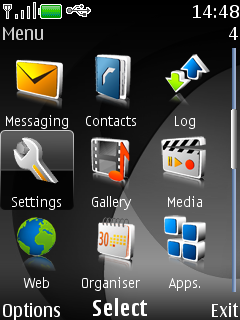
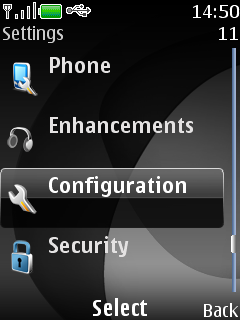
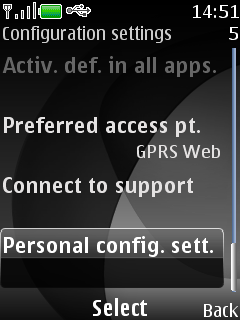
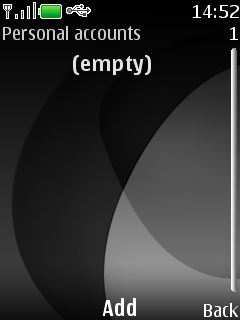
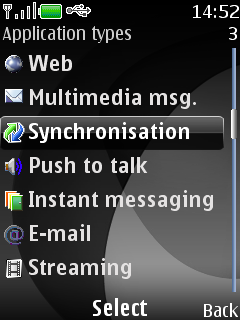
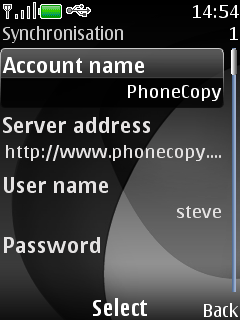
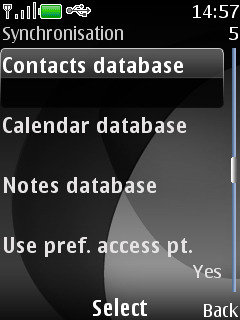
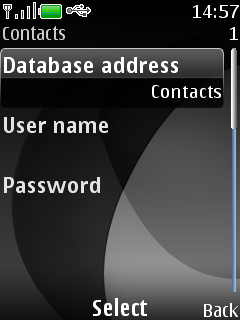
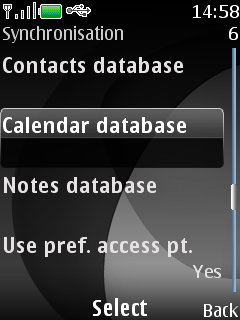
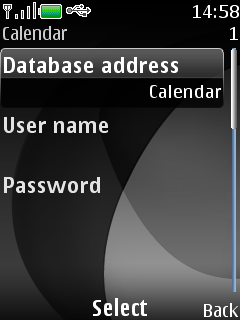
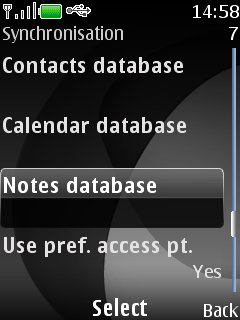
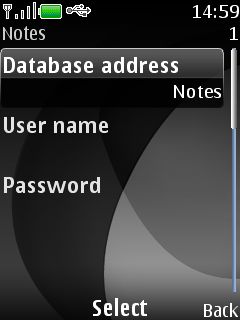
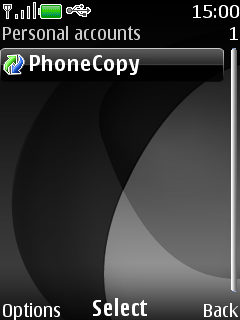
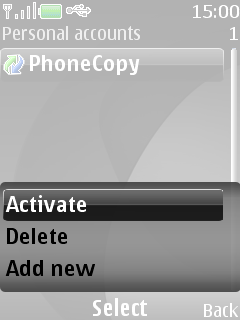
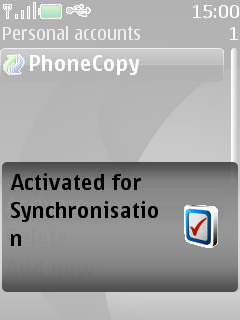
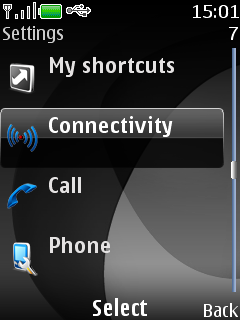
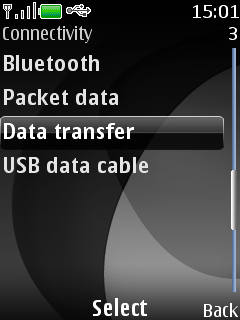
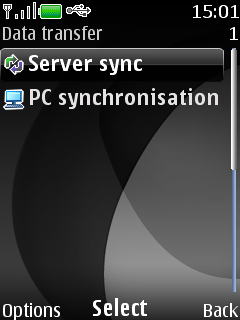
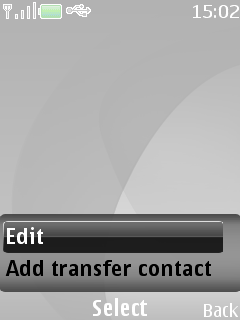
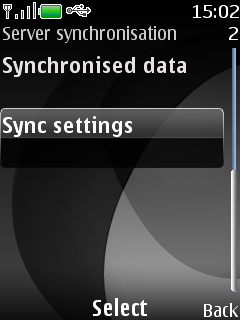
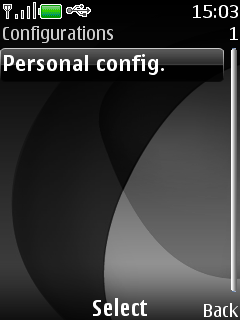
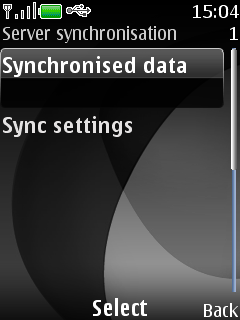
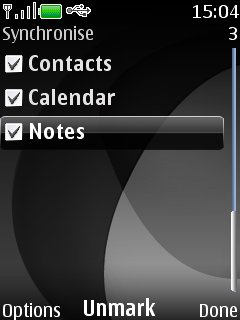
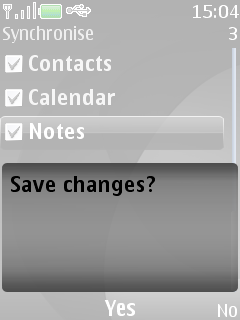
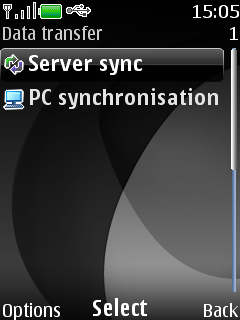
Start the synchronization now. You can select the data to be synchronized before starting. If you are transferring only contact, choose to transfer contacts only. However if you want to use PhoneCopy as a backup platform and you have made the corresponding settings, choose Calendar, Tasks and Notes as well.
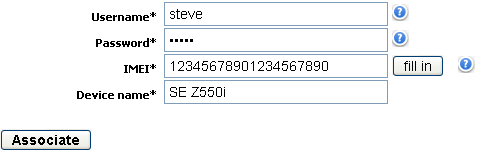
After your phone is synchronized, go back to your PhoneCopy online profile (probably you will have it still open in the browser since you activated your account) and accept the assignment of your phone to the account. If you do it within the hour after the synchronization, the phone will be assigned automatically and you will only need to confirm the process. If the delay is greater than one hour, you will be asked by the server for the cellphone's identification number, called IMEI. This number can be easily found under the battery of the cellphone, or you can type in the symbols *#06# and the IMEI will appear on the display.
Your data is now safe on PhoneCopy. The service stores a full copy of your contacts online, so you can access them from any device or restore them whenever needed.
Some additional tips:
You can easily remove duplicate items among your contact list or SMS messages. Just go to the Contacts (or SMS) section and choose More Actions -> Search for duplicates. Detailed wizard will help you to solve this kind of problem easily.