

How to backup contacts, calendar, tasks and notes from Nokia 301
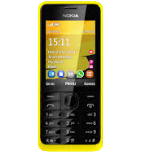
In this tutorial, we show you how to use PhoneCopy.com to safely back up the contacts stored on your Nokia 301. The service is free for personal use and works directly from your phone.
To have your contacts saved you have to synchronize the Nokia with PhoneCopy. For better illustration, we've made some screenshots. The first step is create of synchronization account.
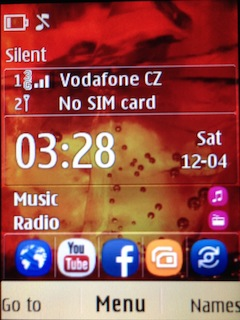
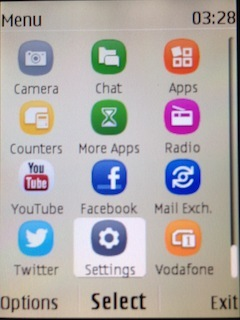
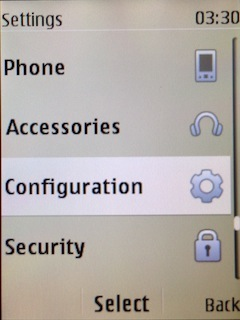
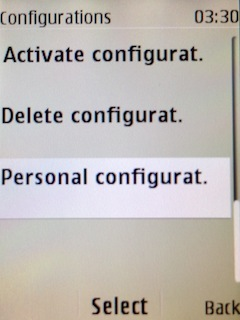
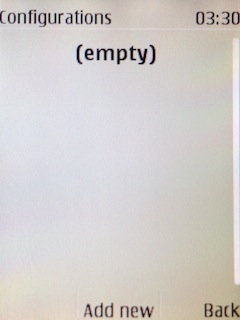
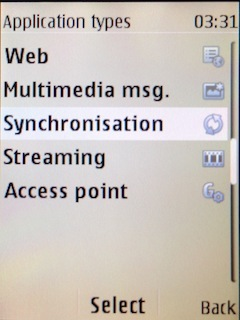
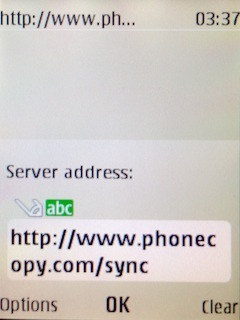
Fill in "Account name" (write PhoneCopy) and "Server address" (http://www.phonecopy.com/sync)
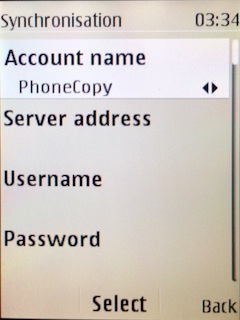
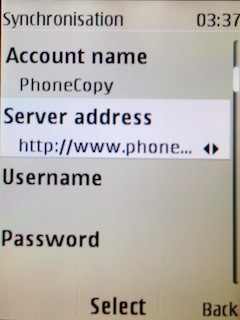
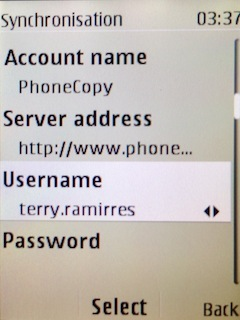
Now you need to fill in your "Username" and "Password".
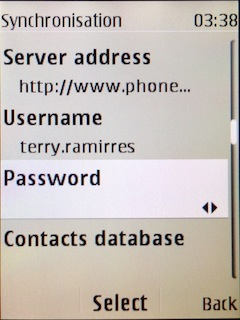
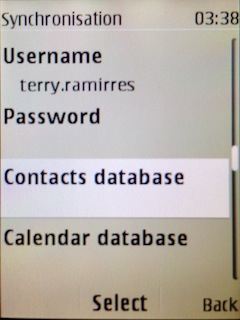
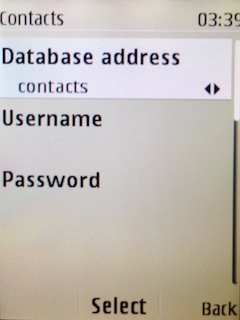
Select "Contacts database" and to "Database address" write contacts.
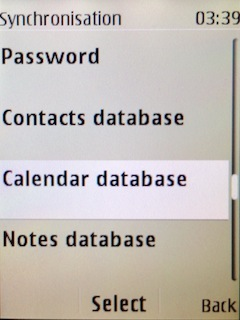
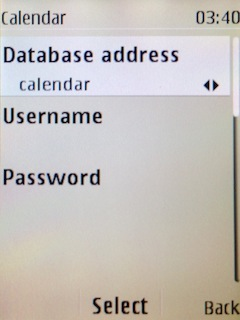
Select "Calendar database" and to "Database address" write calendar.
Select "Notes database" and to "Database address" write notes.
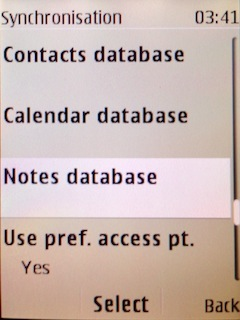
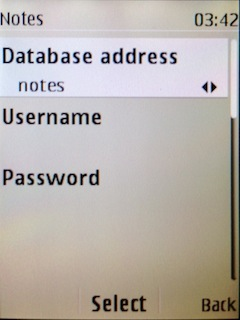
Choose, if you want to "Use pref. acces pt." and press 3x "Back".
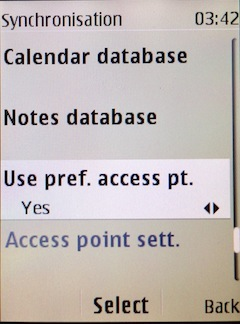
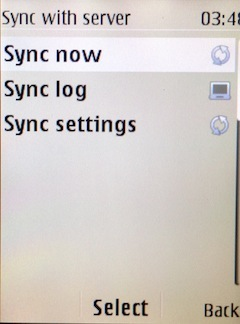
Now you need to select "Sync settings".
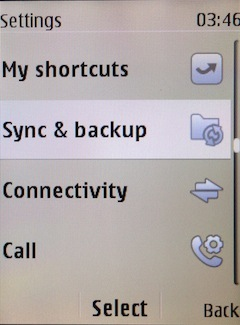
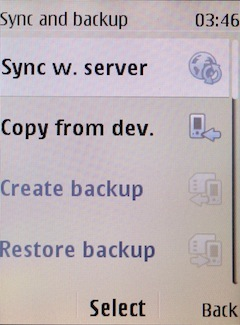
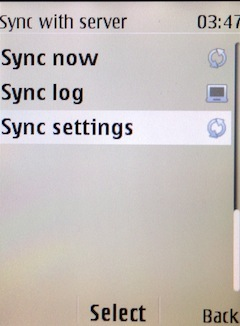
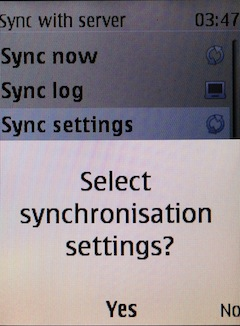
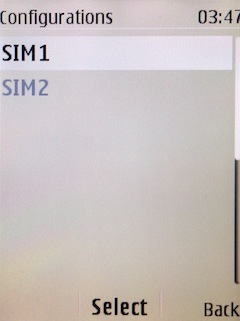
If you have Nokia 515 Dual sim, select "SIM" for synchronisation, choose "PhoneCopy" account and press 2x Back.
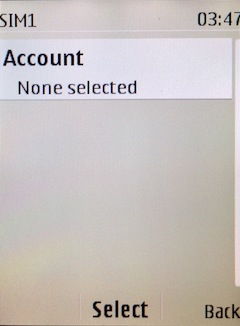
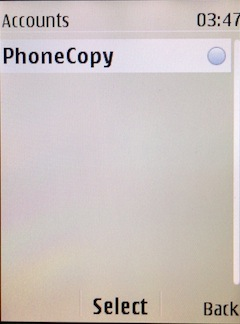
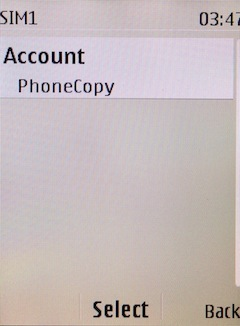
Select "Synchronised data", mark "Contacts" and press "Done".
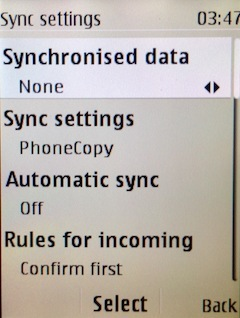
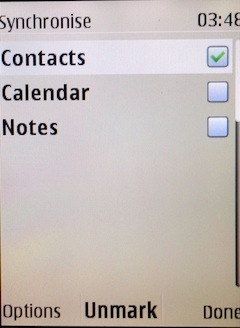
Choose, if you want to use "Automatic sync" and press "Back".
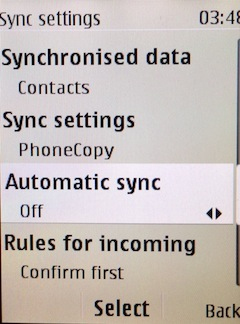
Now you can start synchronisation.
Well done — your contacts are now securely backed up in the cloud. Open your PhoneCopy account in any browser to review your data or make changes at any time.
Some additional tips:
PhoneCopy also supports syncing notes, calendar events, and SMS messages on many devices, not just contacts. Check the PhoneCopy website to see the full list of supported data types for your phone.