

How to backup contacts from Microsoft Surface for windows 8 pro
Whether you are switching phones or just want a safe copy of your data, PhoneCopy.com is a great solution. This guide covers how to back up contacts from your Microsoft Surface for windows 8 pro quickly and easily.
You need an PC with an operating system Windows 8, 8.1 or 10 and application PhoneCopy for Windows 8. You can find it in "Windows Store" in "Productivity" section, or just follow this link.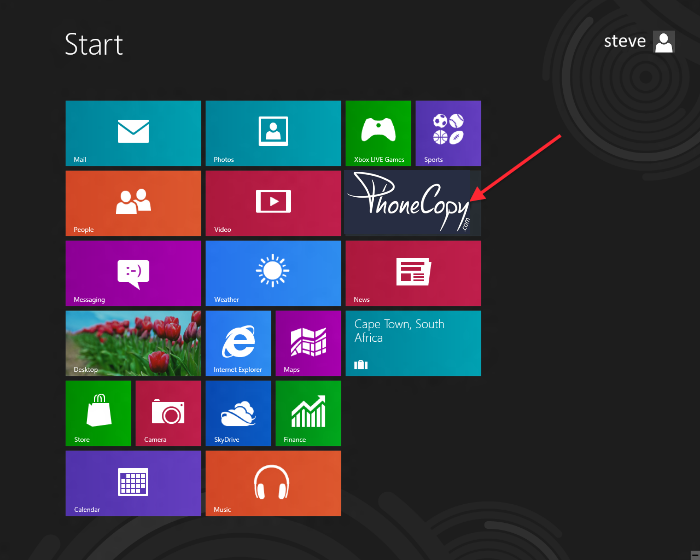
Synchronize contacts from your account on PhoneCopy to Windows 8
Open PhoneCopy application and read initial instructions.
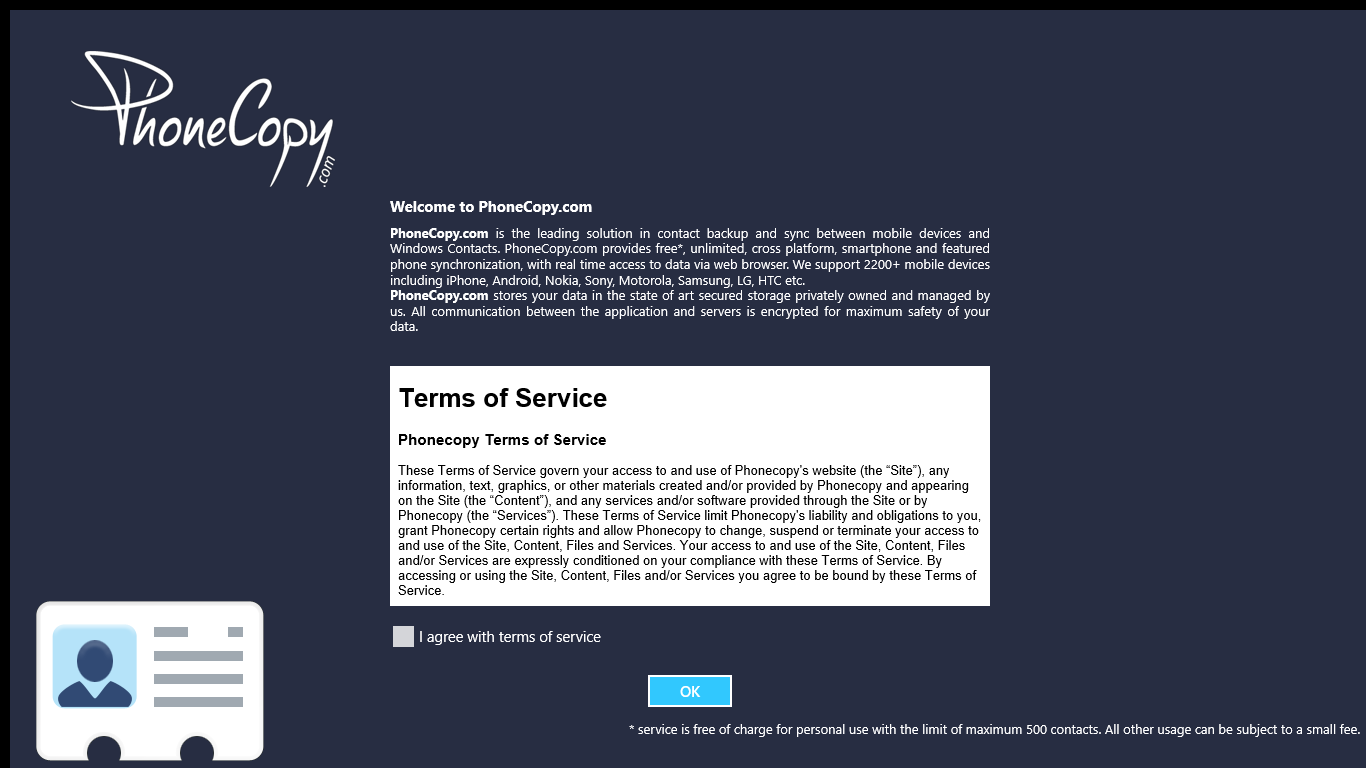
If you don't have an account on PhoneCopy.com, choose "Create new account". If you already have an account on PhoneCopy.com, choose "Use existing account".

When you create new account, you will see registration for. Fill all boxes and click to "Sign up".
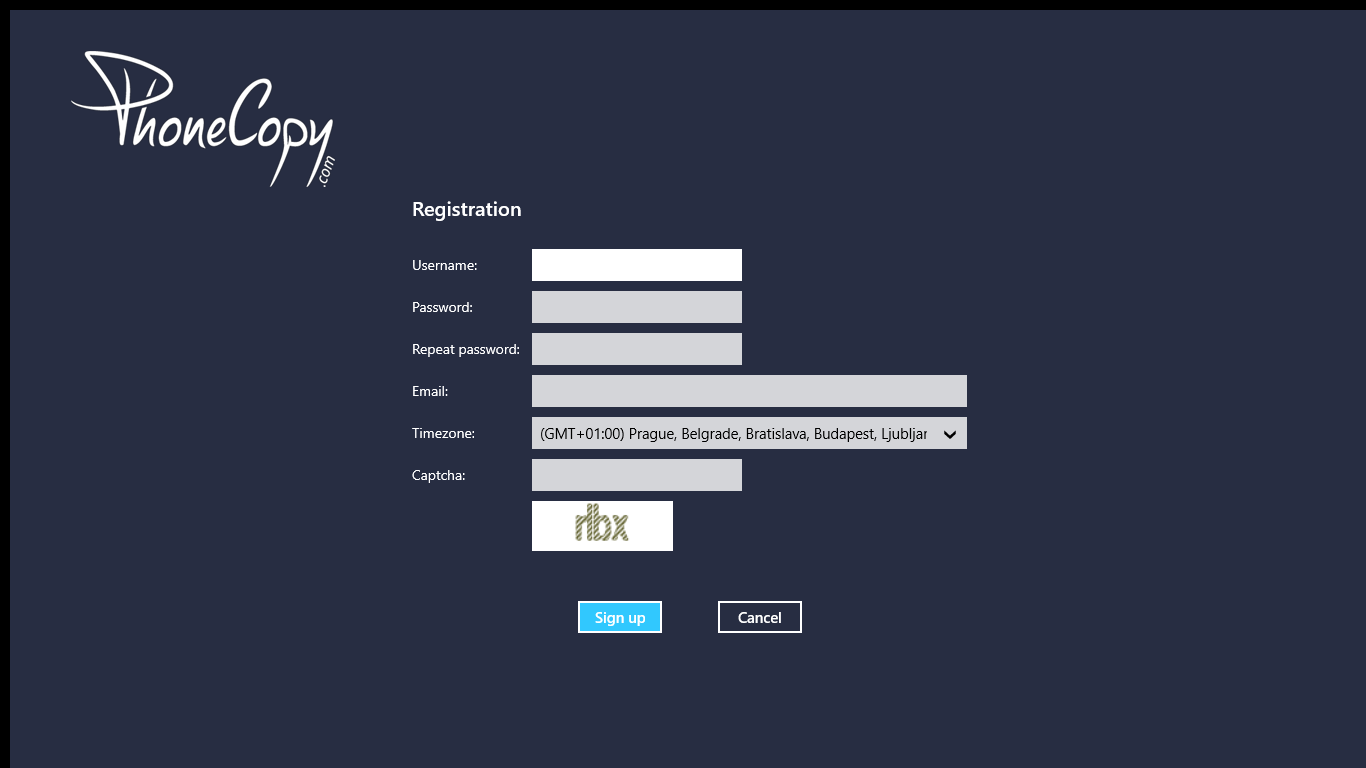
If you already have an account, fill your login credentials. "Pick folder" to select where will be your contacts stored.
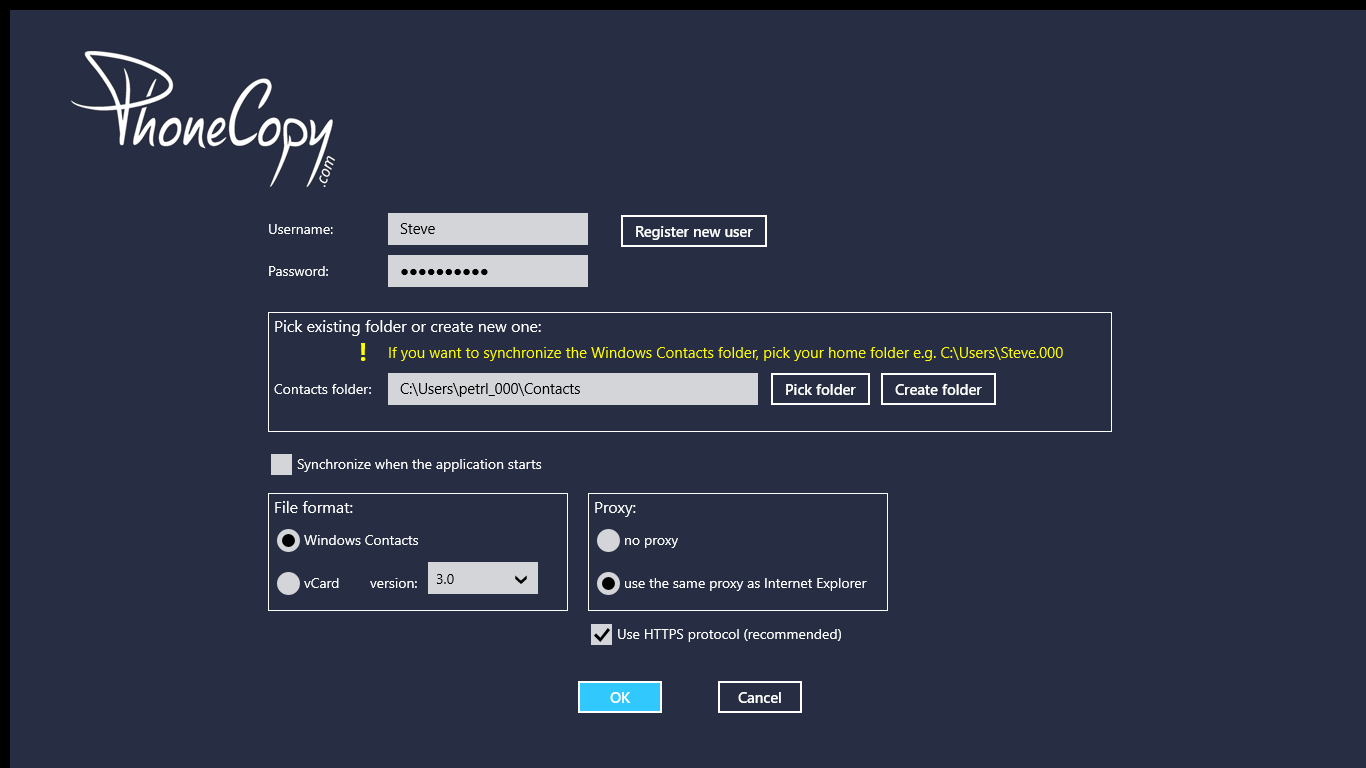
On next page start synchronization by pressing "Synchronize" button.
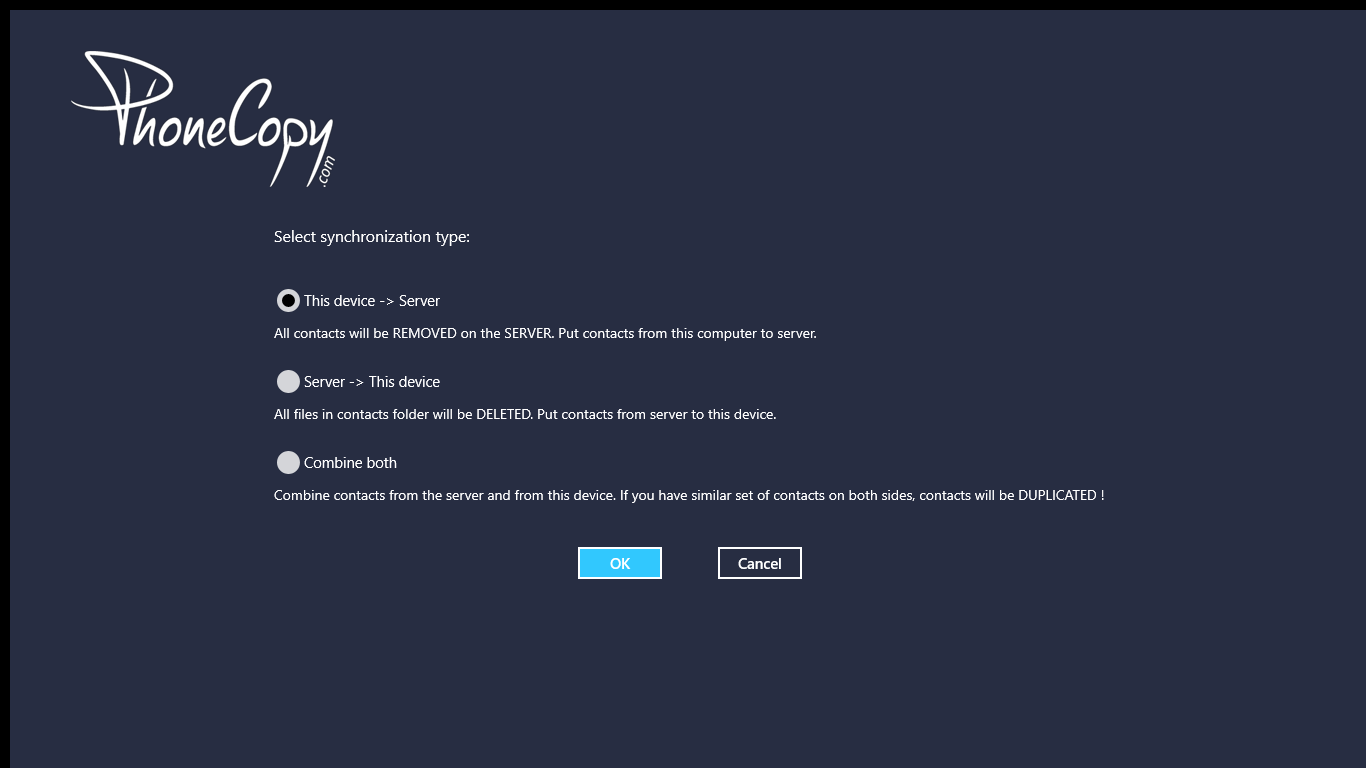
On first synchronization you will be asked for synchronization direction.
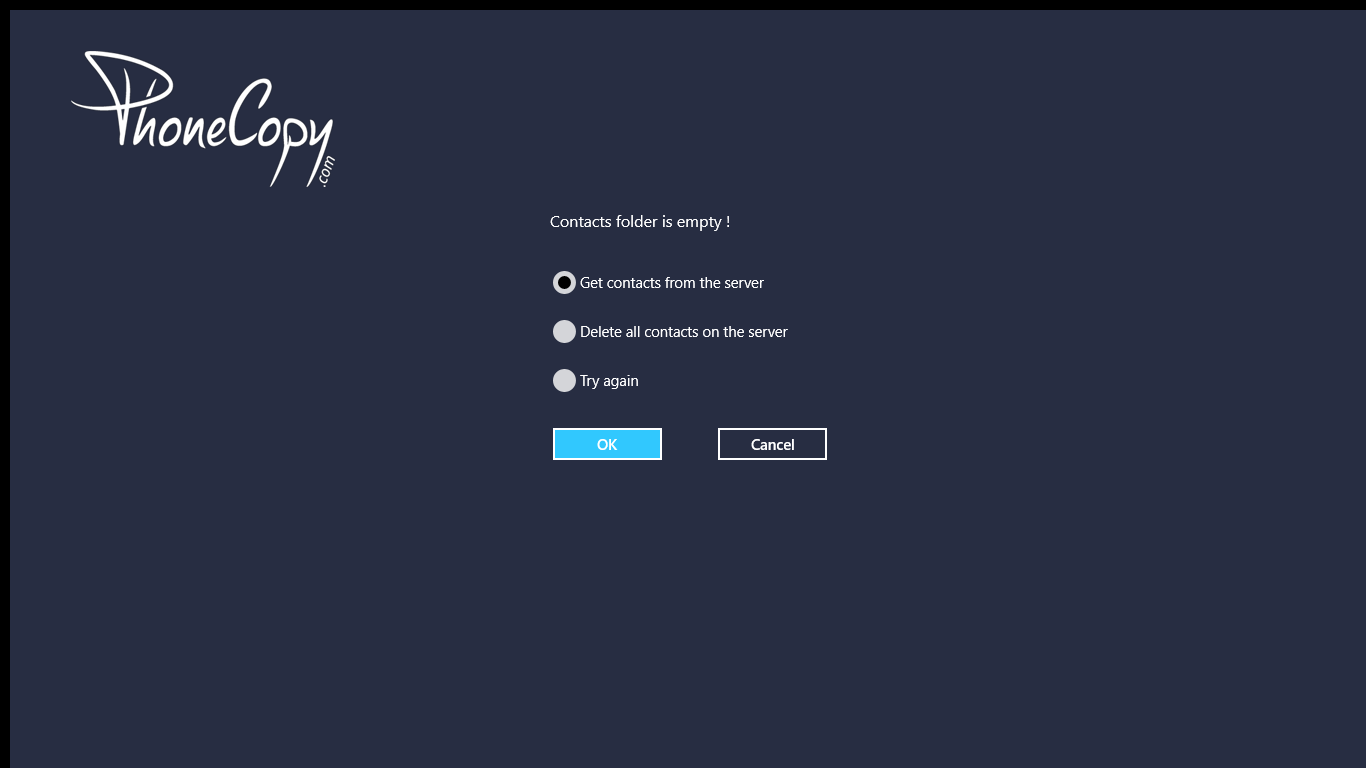
In case you don't have contact in selected source you will be noticed.
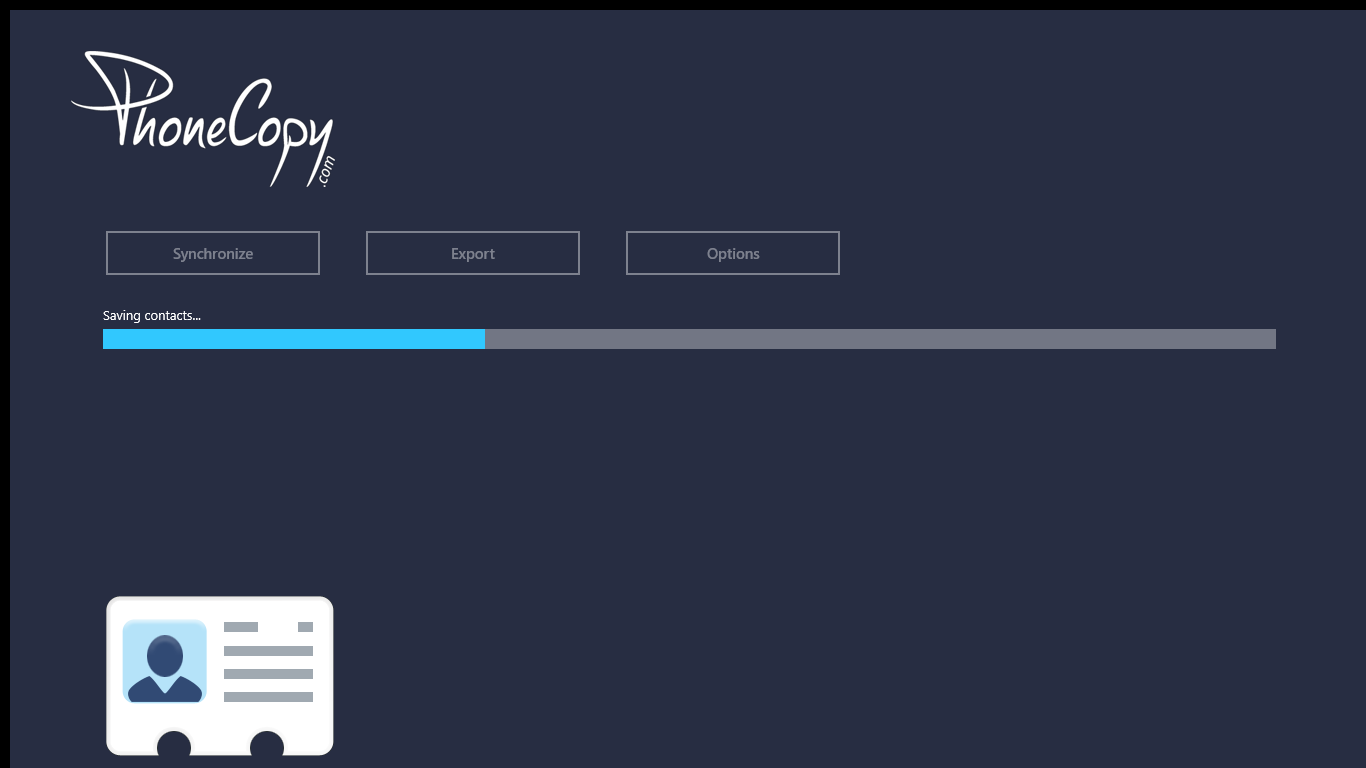
When you will add any contacts to selected directory you will see it synchronized to PhoneCopy after next sync.
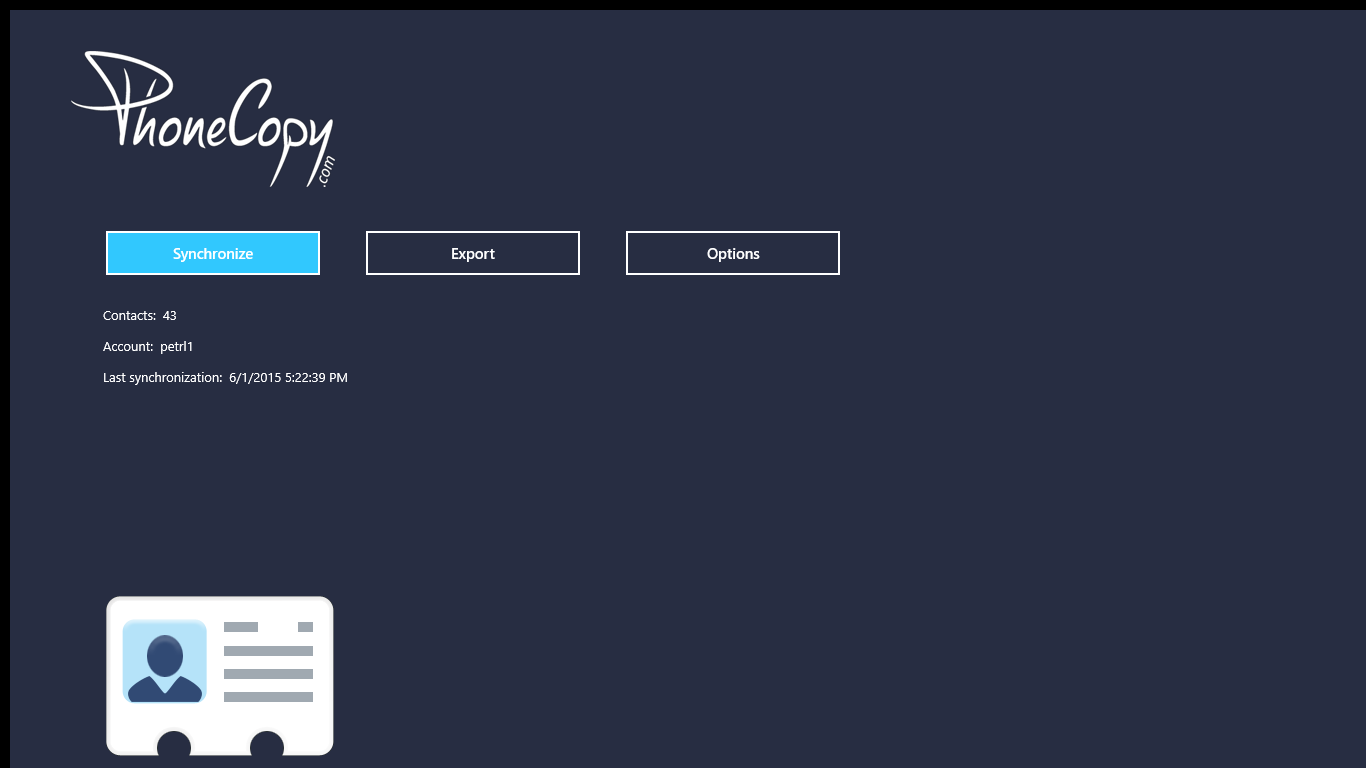
You can see page with information about your synchronization.
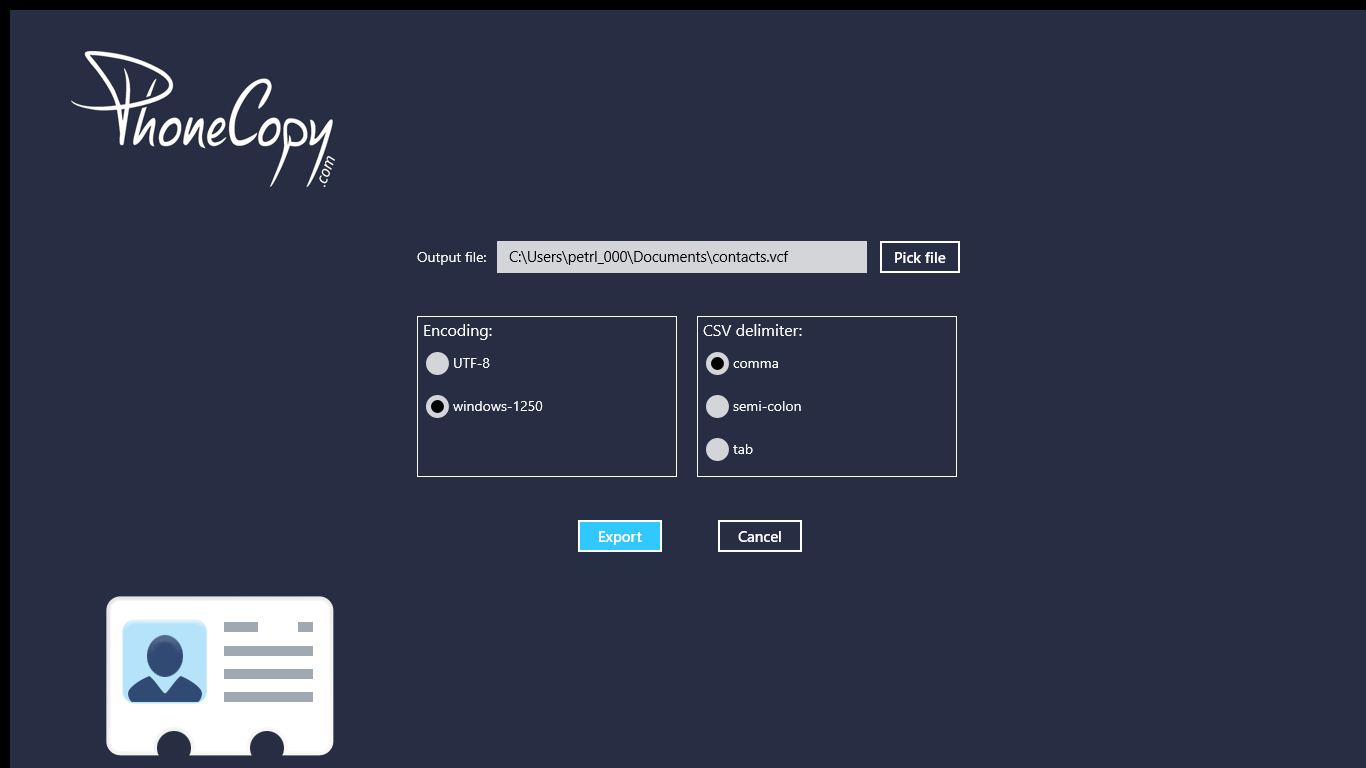
Once everything is done, check your data on the web. Login to PhoneCopy webpage and you will see brief review of all data transferred from your device. With another mouse click, you can review the change of each particular item.
Some additional tips:
PhoneCopy also supports syncing notes, calendar events, and SMS messages on many devices, not just contacts. Check the PhoneCopy website to see the full list of supported data types for your phone.