

How to backup contacts from HTC Touch 2
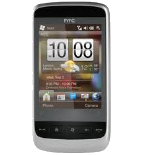
This step-by-step guide will help you back up your contacts from HTC Touch 2 using PhoneCopy.com. The service works in the background and the whole process takes just a few minutes.
Phonecopy client registration is simple. Choose your username and insert your email address, where we will send you a confirmation email that you will need to activate your account.
Windows Mobile setup
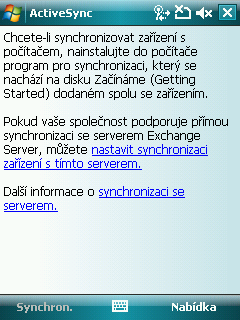
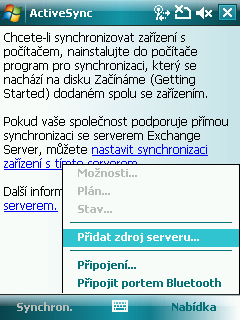
This guide works for Windows Mobile 5.0, Windows Mobile 6, Windows Mobile 6.1 or Windows Mobile 6.5. ActiveSync can be found on your phone by selecting Start - Programs - ActiveSync. Next, select Menu - Add source server.
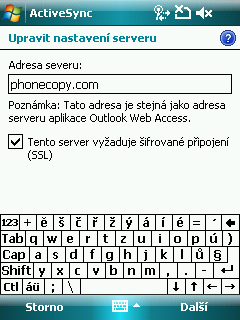
Fill in your user credentials. Navigate between the steps by pressing Next and finally confirm the settings by pressing Finish.
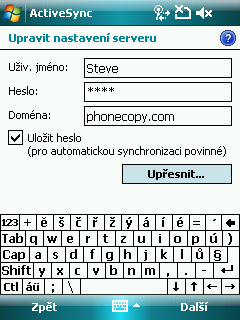
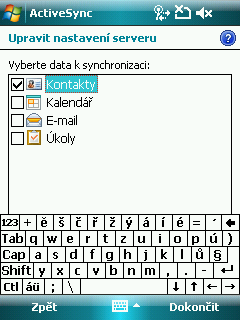
Synchronization will start automatically.
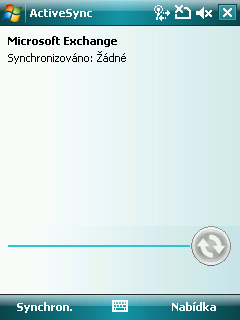
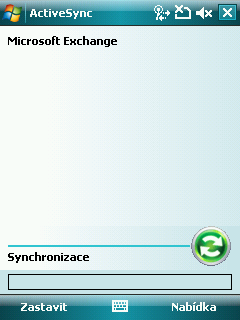
Start future synchronizations by choosing Sync.
Now you can easily edit your contacts and other resources online in your PhoneCopy profile. You have access to your contact even if you forget your phone at home.
Some additional tips:
Just as a reminder, the contacts are transferred via your mobile phone service provider, so you need to have data plan activated for the service to work. If you don't have a special data scheme, your carrier will charge you additional fees.