

How to backup contacts, calendar and tasks from HTC Titan
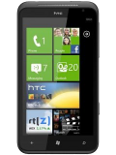
PhoneCopy.com makes it simple to back up your contacts from HTC Titan to the cloud. In this guide, we will walk you through the entire process step by step.
Download the PhoneCopy application from windowsphone.com. If you do not have a PhoneCopy account yet, press "Register new account" and create it by filling in "Registration" and then press "Sign up".
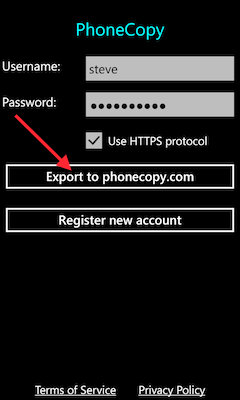
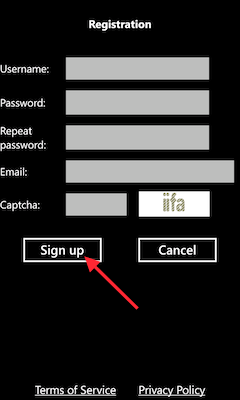
If you already have a PhoneCopy account, fill in your username and password. To export your contacts, press "Export to PhoneCopy.com". If you want to upload your merged contacts back to the same Windows Phone 7, it is necessary to delete all contacts there first.
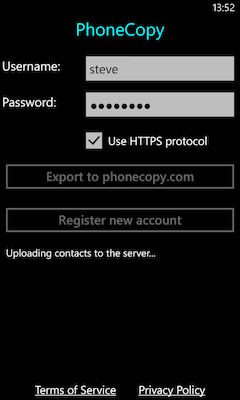
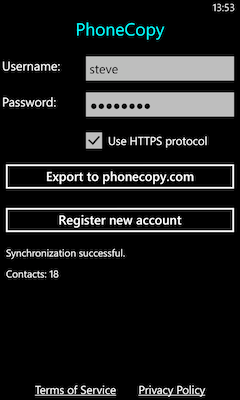
With your contacts safely backed up, you can rest easy knowing your data is secure. Log into your PhoneCopy account at any time to view, edit, or restore your contacts.
Some additional tips:
It is a good idea to run a sync before any major change, such as a factory reset or an OS update. That way, your contacts are always protected before anything unexpected happens.