

How to backup contacts, calendar and tasks from HTC 7 Mozart
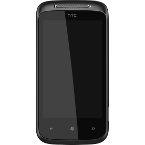
PhoneCopy.com supports hundreds of phone models, including HTC 7 Mozart. This guide will show you how to use it to create a safe backup of your contacts in just a few minutes.
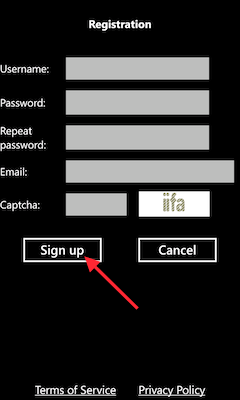
Download the PhoneCopy application from windowsphone.com. If you do not have a PhoneCopy account yet, press "Register new account" and create it by filling in "Registration" and then press "Sign up".
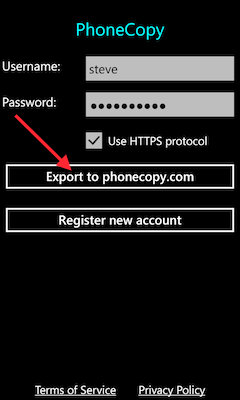
If you already have a PhoneCopy account, fill in your username and password. To export your contacts, press "Export to PhoneCopy.com". If you want to upload your merged contacts back to the same Windows Phone 7, it is necessary to delete all contacts there first.
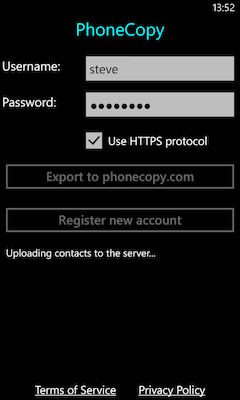
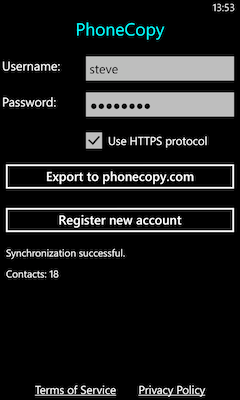
That is all there is to it. Your contacts are now backed up on PhoneCopy and you can access them from any browser whenever you need them.
Some additional tips:
It is a good idea to run a sync before any major change, such as a factory reset or an OS update. That way, your contacts are always protected before anything unexpected happens.