

How to backup contacts and calendar from BLU Tank Mega T570
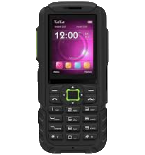
Whether you are switching phones or just want a safe copy of your data, PhoneCopy.com is a great solution. This guide covers how to back up contacts from your BLU Tank Mega T570 quickly and easily.
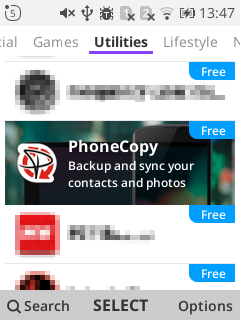
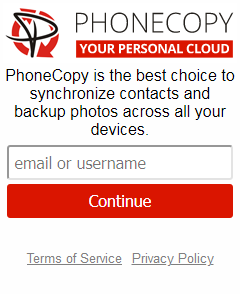
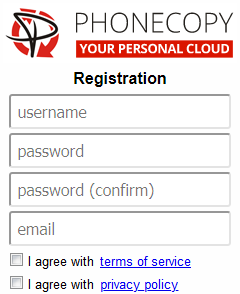
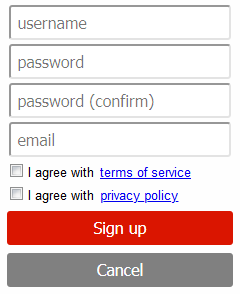
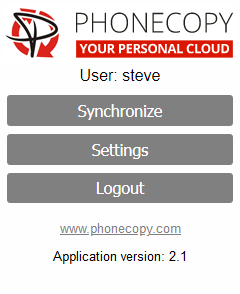
If you already have a PhoneCopy account, fill in your password. To export your contacts, press "Synchronize". Then select synchronization direction between three options: From your DEVICE to server, From SERVER to your device or Combine both. If you are not sure, use Combine both.
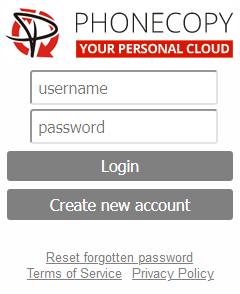
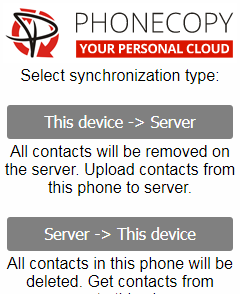
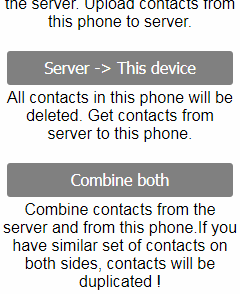
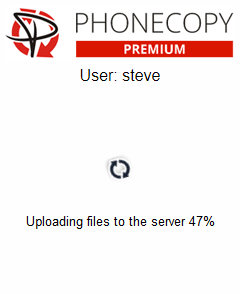
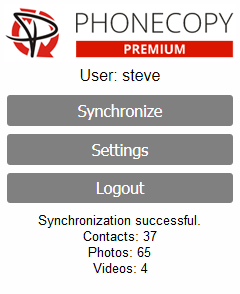
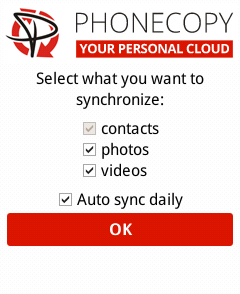
Select "contacts" and/or "photos" and press Synchronize. At the end of synchronization you will see status of synchronized items. In the Settings, you can set "auto sync daily".
Well done — your contacts are now securely backed up in the cloud. Open your PhoneCopy account in any browser to review your data or make changes at any time.
Some additional tips:
PhoneCopy keeps a detailed sync history for your account. If you accidentally delete a contact, you can recover it from an earlier backup without losing any other data.