

How to backup contacts from Asus Vivo Tab RT
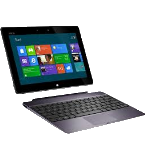
PhoneCopy.com is a reliable way to keep your contacts safe. Follow this guide to learn how to back up your Asus Vivo Tab RT data quickly and without any technical knowledge.
You need an PC with an operating system Windows 8, 8.1 or 10 and application PhoneCopy for Windows 8. You can find it in "Windows Store" in "Productivity" section, or just follow this link.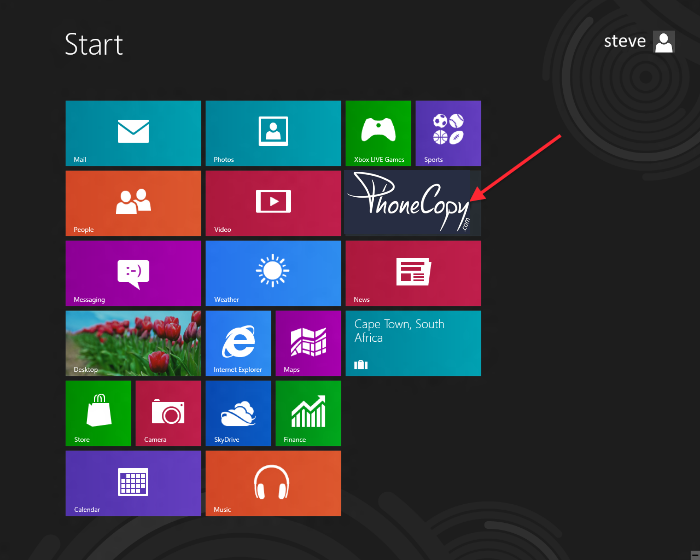
Synchronize contacts from your account on PhoneCopy to Windows 8
Open PhoneCopy application and read initial instructions.
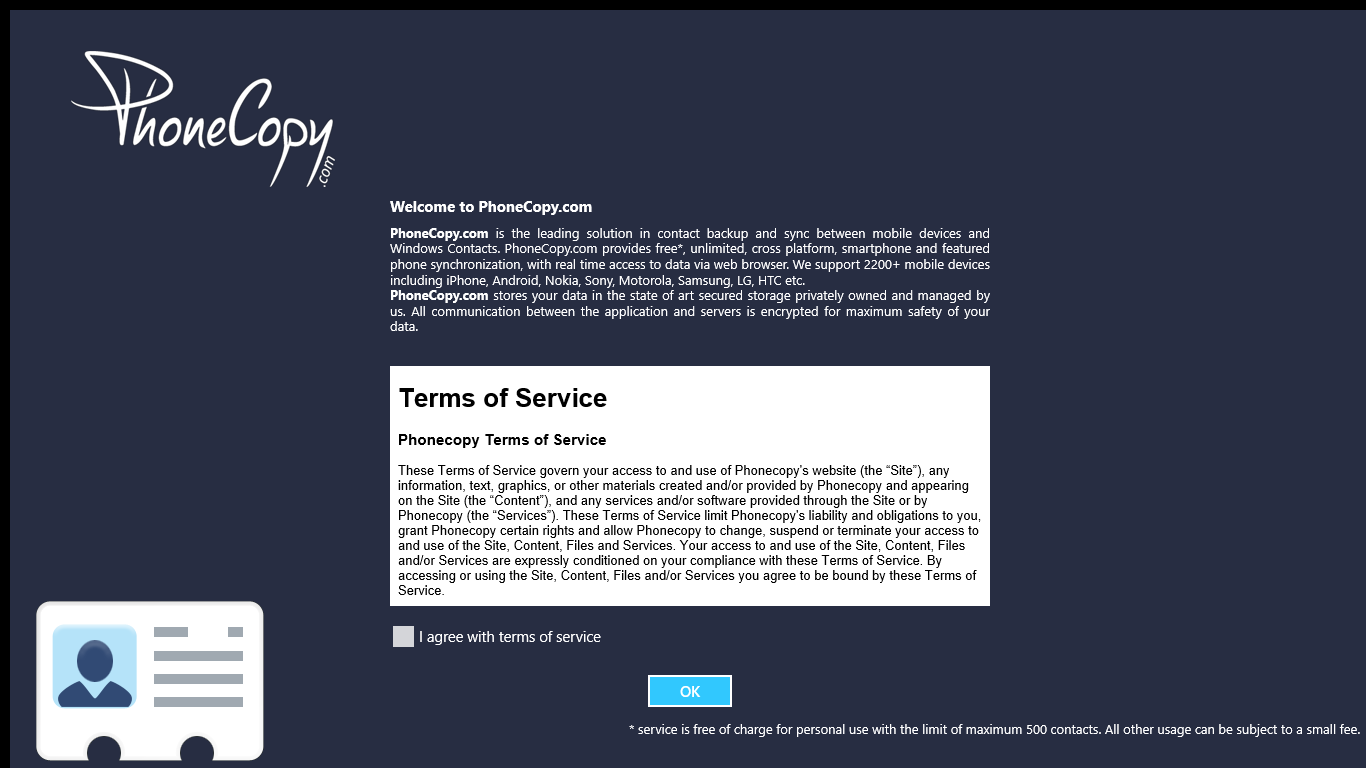
If you don't have an account on PhoneCopy.com, choose "Create new account". If you already have an account on PhoneCopy.com, choose "Use existing account".

When you create new account, you will see registration for. Fill all boxes and click to "Sign up".
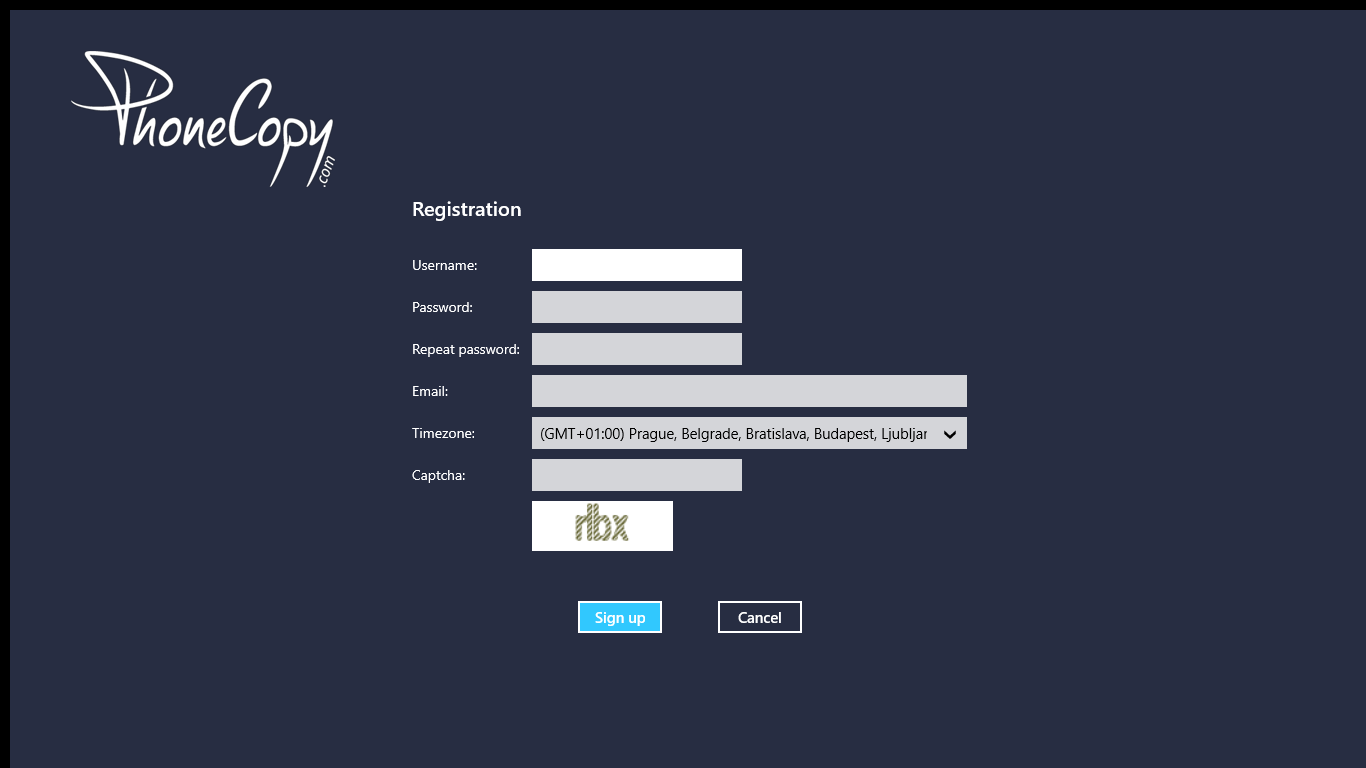
If you already have an account, fill your login credentials. "Pick folder" to select where will be your contacts stored.
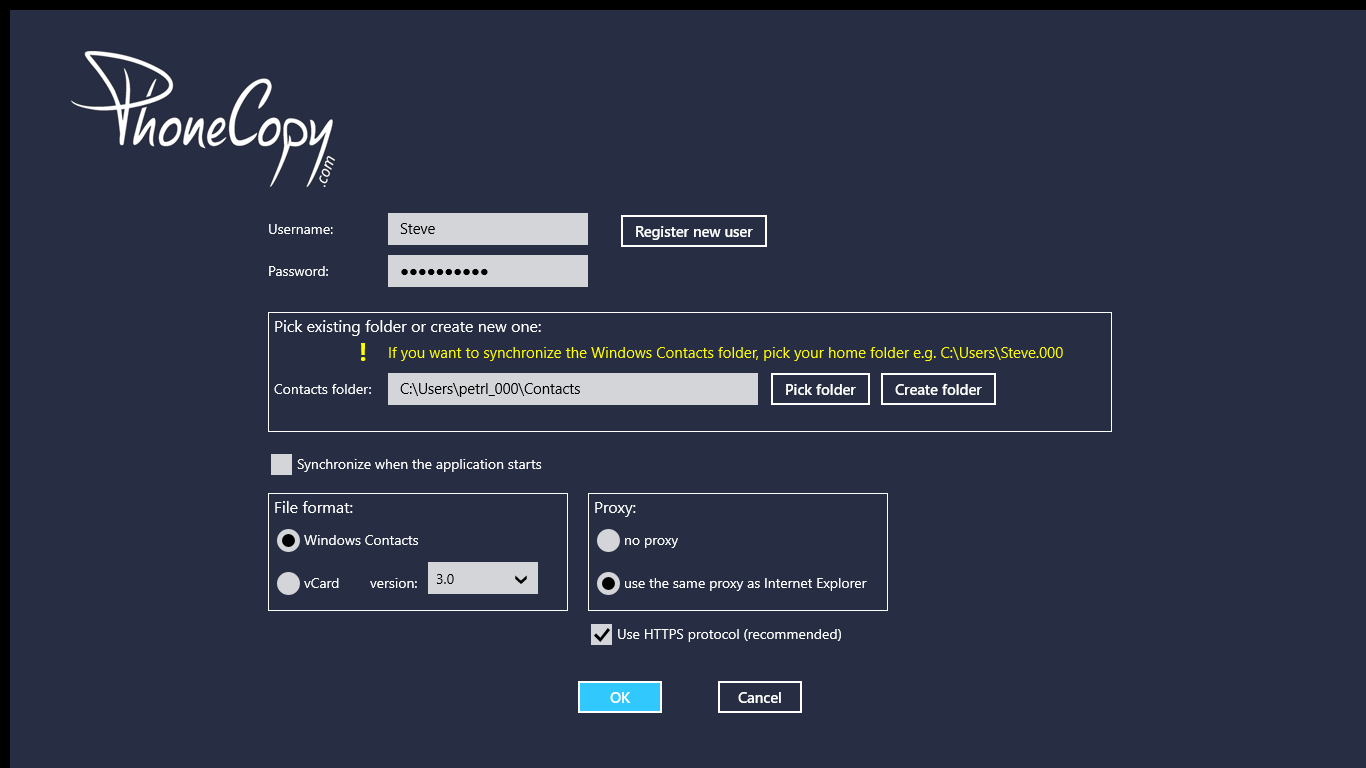
On next page start synchronization by pressing "Synchronize" button.
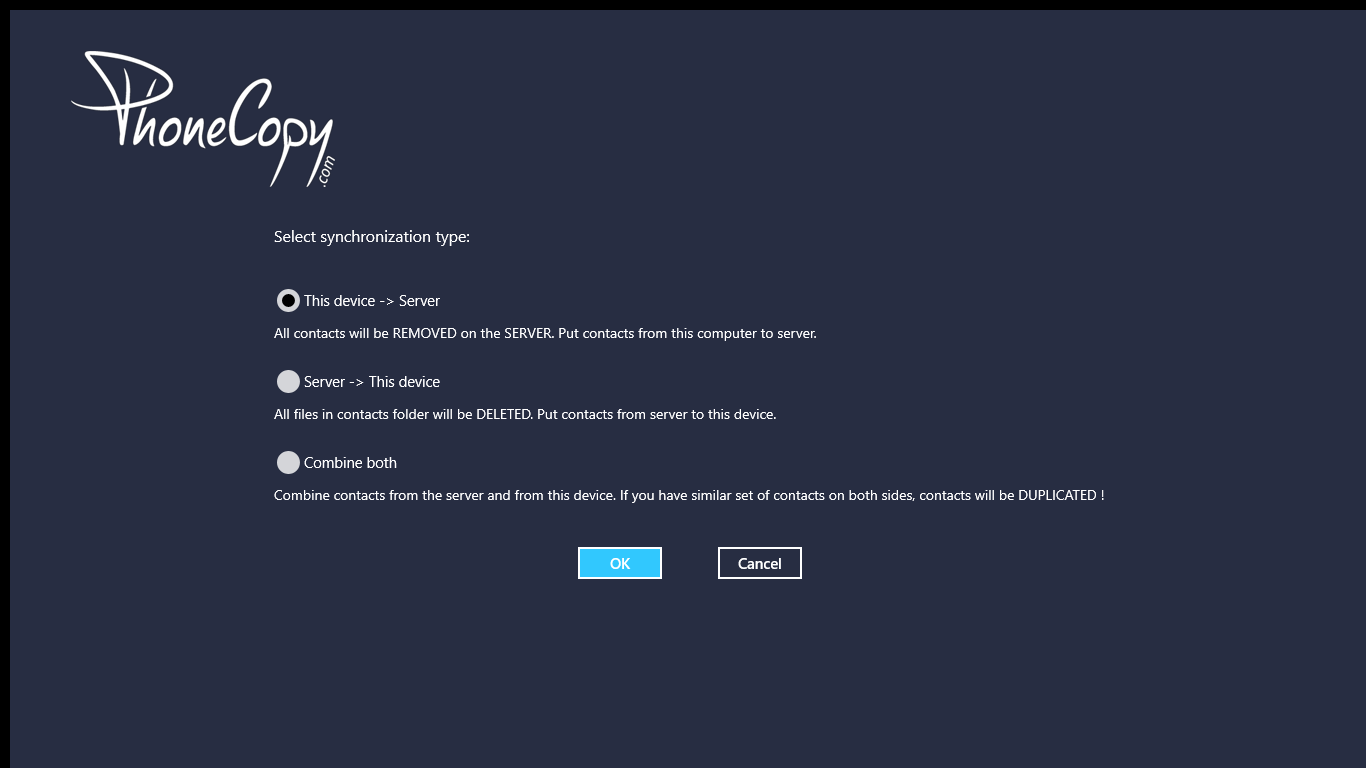
On first synchronization you will be asked for synchronization direction.
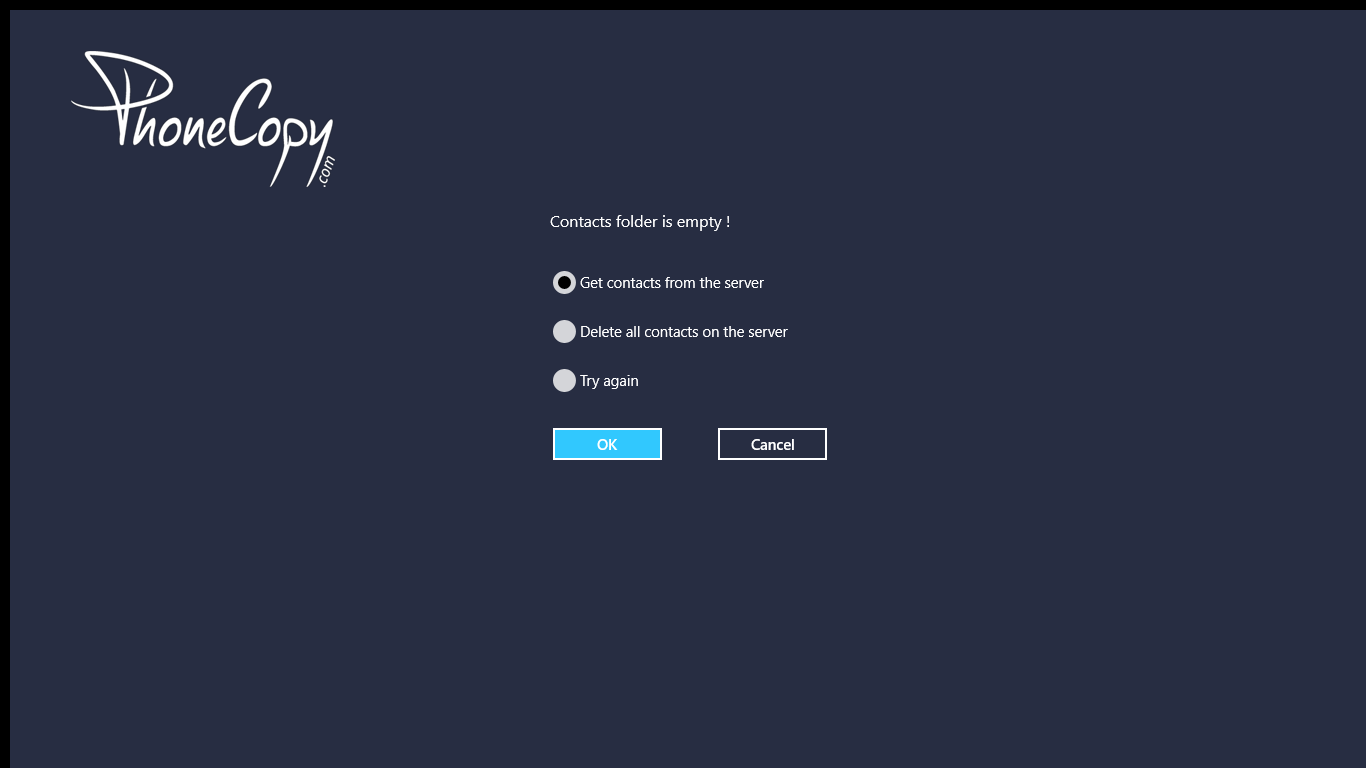
In case you don't have contact in selected source you will be noticed.
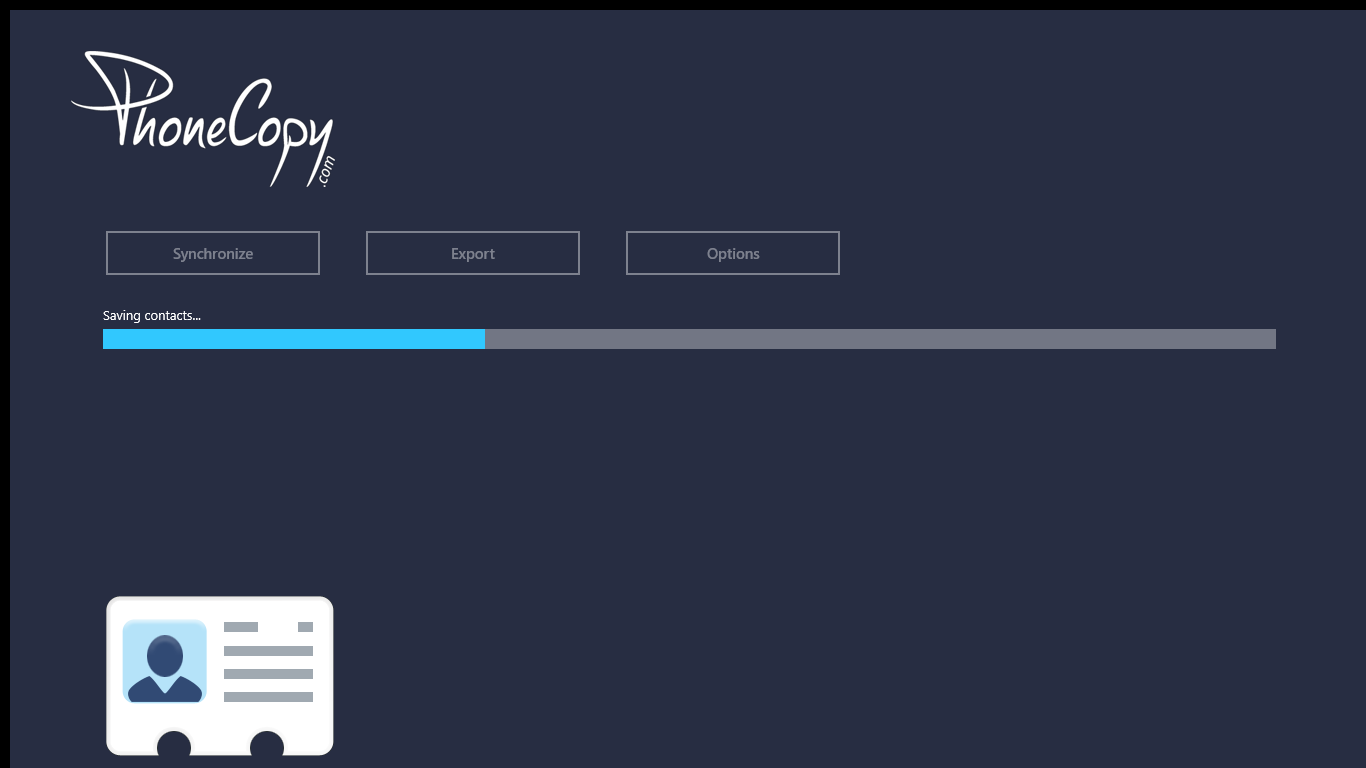
When you will add any contacts to selected directory you will see it synchronized to PhoneCopy after next sync.
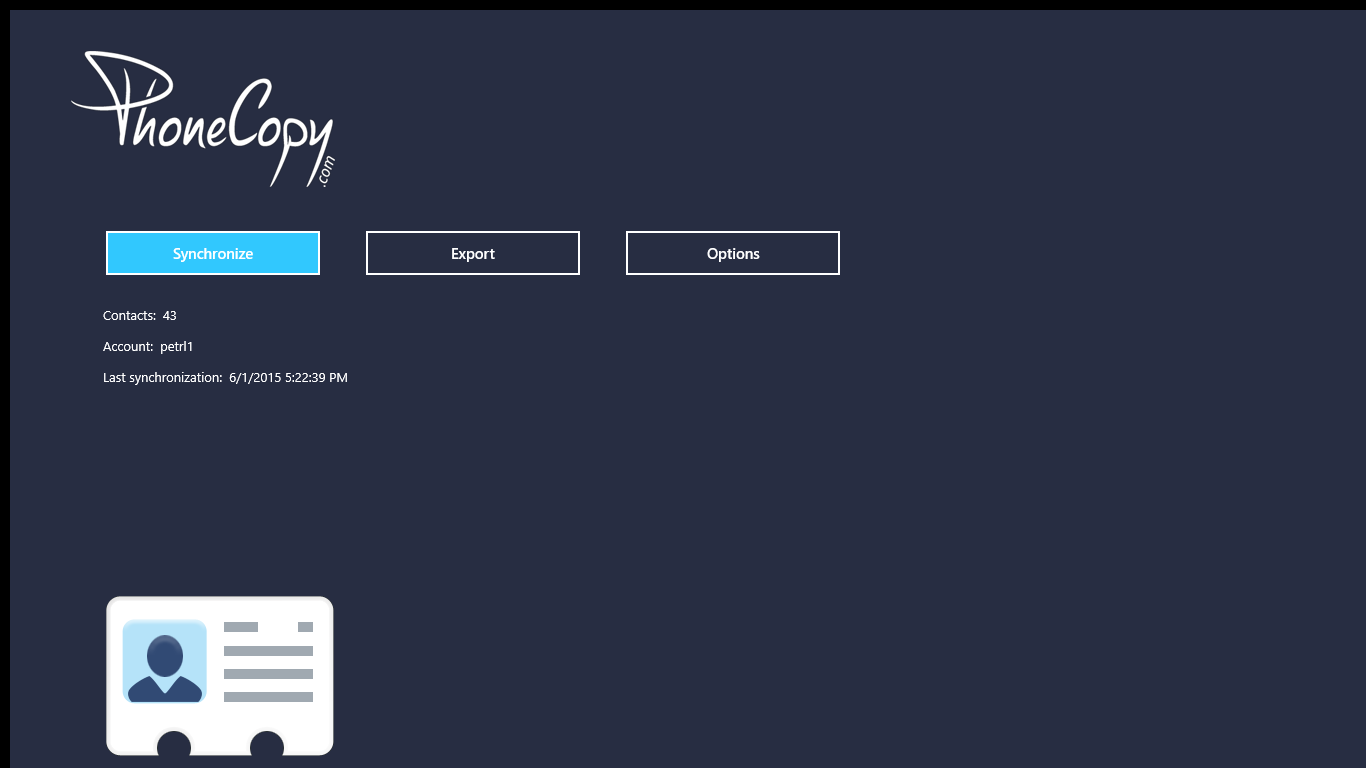
You can see page with information about your synchronization.
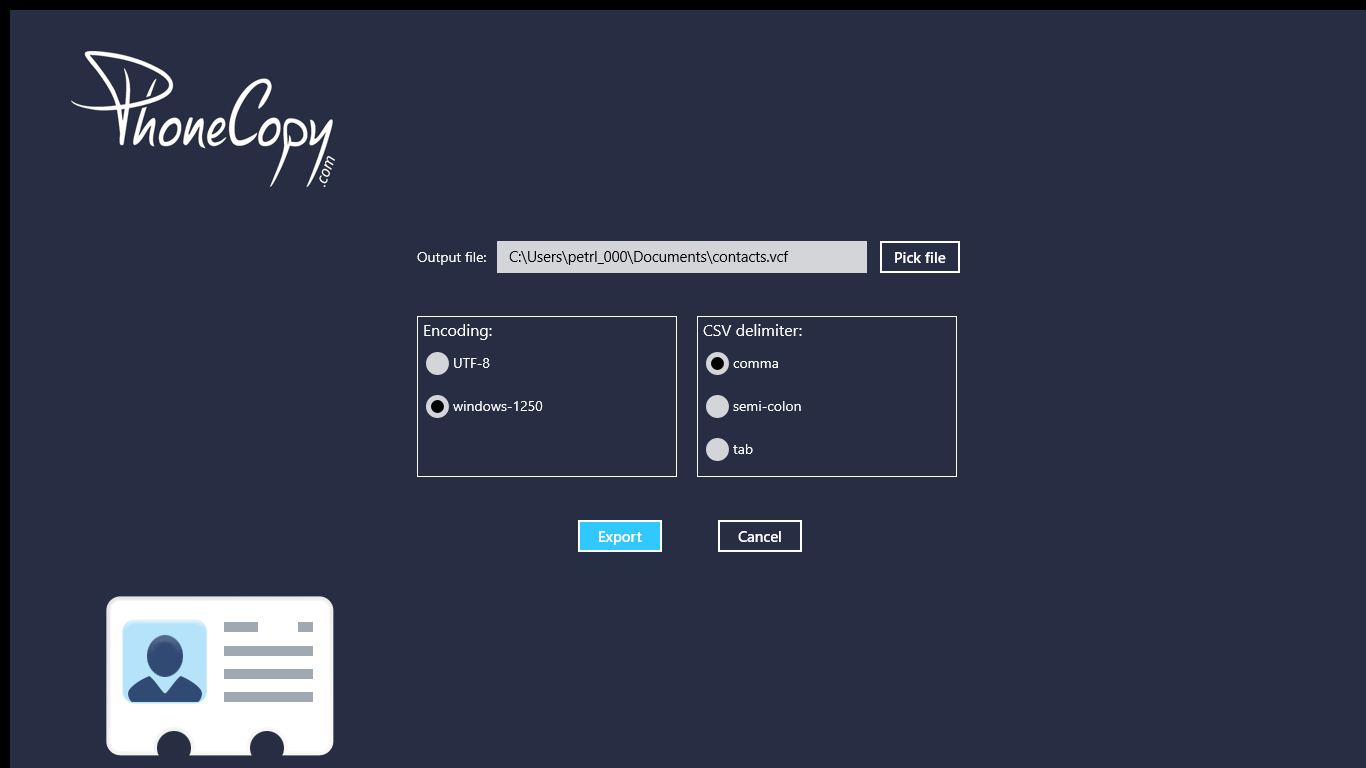
Now you can easily edit your contacts and other resources online in your PhoneCopy profile. You have access to your contact even if you forget your phone at home.
Some additional tips:
If the sync does not complete, make sure your phone has a stable internet connection and that background data is enabled for the PhoneCopy app. A brief pause and retry usually resolves the issue.