

How to backup contacts, calendar and tasks from Acer Liquid M320
PhoneCopy.com makes it simple to back up your contacts from Acer Liquid M320 to the cloud. In this guide, we will walk you through the entire process step by step.
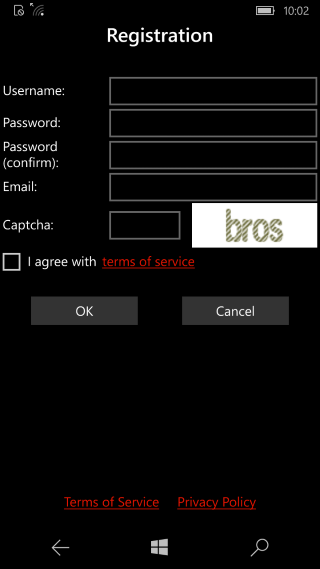
Download the PhoneCopy application from windowsphone.com. If you do not have a PhoneCopy account yet, press "Register new account" and create it by filling in "Registration" and then press "Sign up".
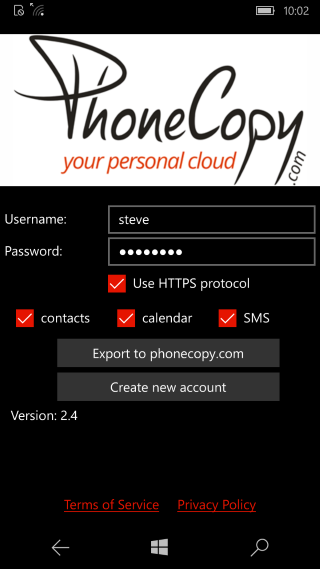
If you already have a PhoneCopy account, fill in your username and password. To export your contacts, press "Export to PhoneCopy.com". If you want to upload your merged contacts back to the same Windows 10 Phone, it is necessary to delete all contacts there first.
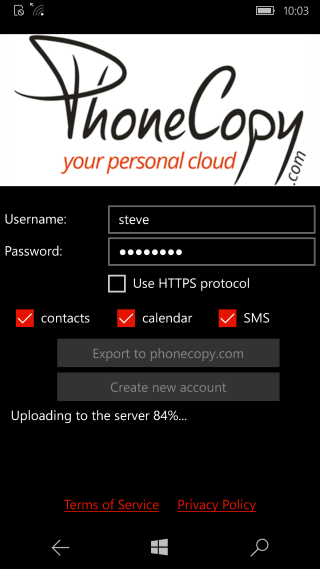
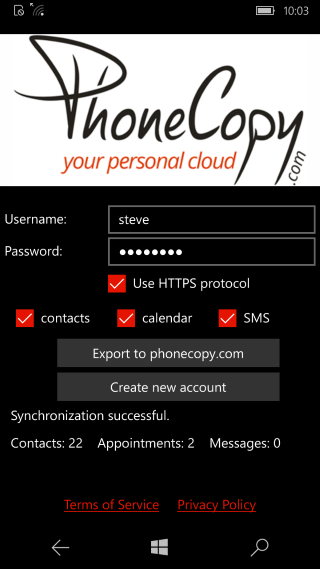
Well done — your contacts are now securely backed up in the cloud. Open your PhoneCopy account in any browser to review your data or make changes at any time.
Some additional tips:
You can set PhoneCopy to sync automatically at regular intervals, so your backup always stays up to date without you having to remember to do it manually.