

How to backup contacts from Acer Aspire P3
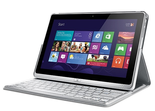
PhoneCopy.com is a web service which is free for personal purposes (with few limitations). This tutorial will show you how to backup your data from Acer Aspire P3. The whole process can be completed in few minutes.
You need an PC with an operating system Windows 8, 8.1 or 10 and application PhoneCopy for Windows 8. You can find it in "Windows Store" in "Productivity" section, or just follow this link.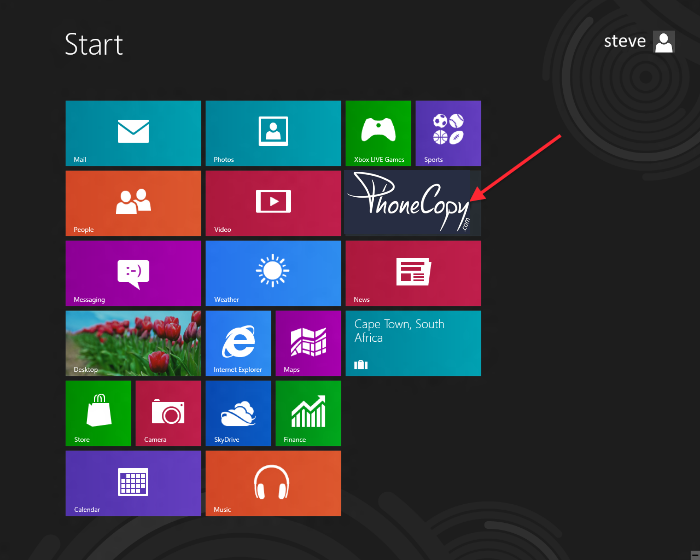
Synchronize contacts from your account on PhoneCopy to Windows 8
Open PhoneCopy application and read initial instructions.
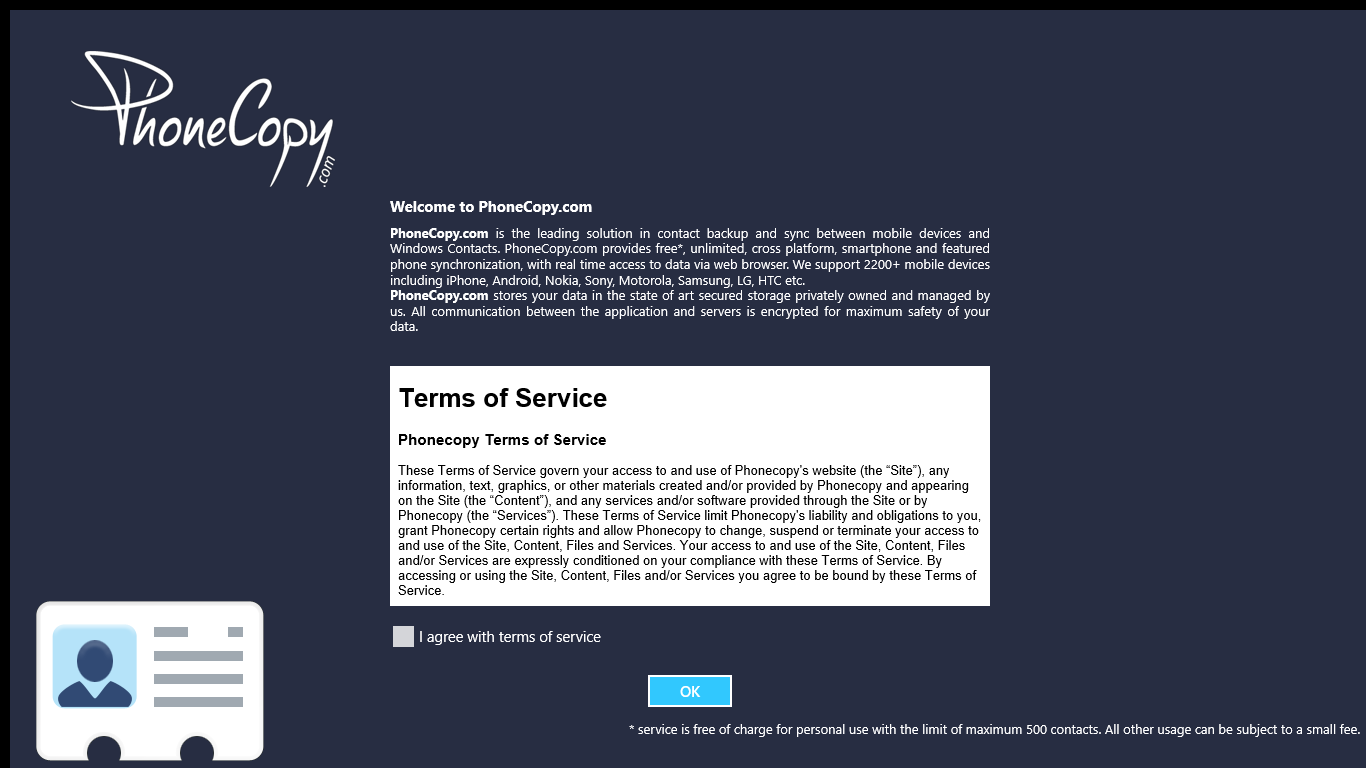
If you don't have an account on PhoneCopy.com, choose "Create new account". If you already have an account on PhoneCopy.com, choose "Use existing account".

When you create new account, you will see registration for. Fill all boxes and click to "Sign up".

If you already have an account, fill your login credentials. "Pick folder" to select where will be your contacts stored.
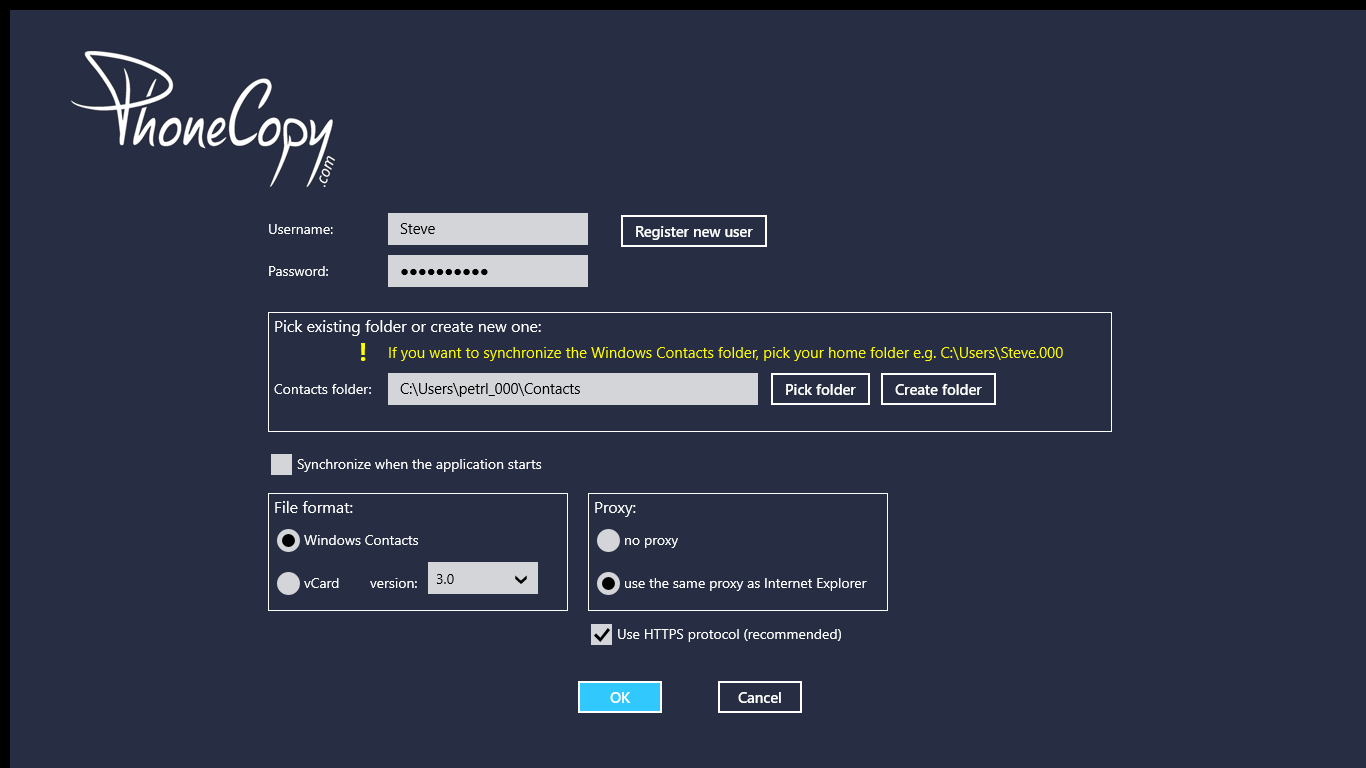
On next page start synchronization by pressing "Synchronize" button.
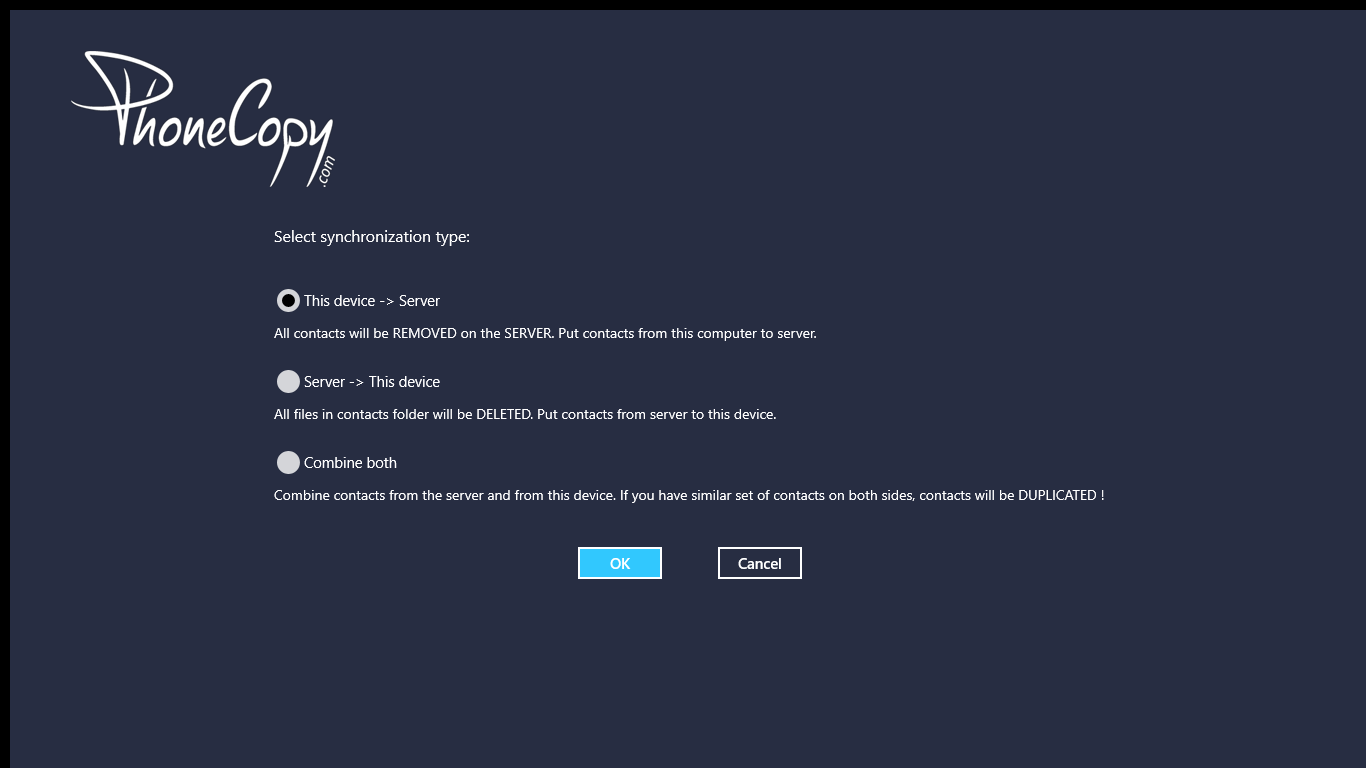
On first synchronization you will be asked for synchronization direction.
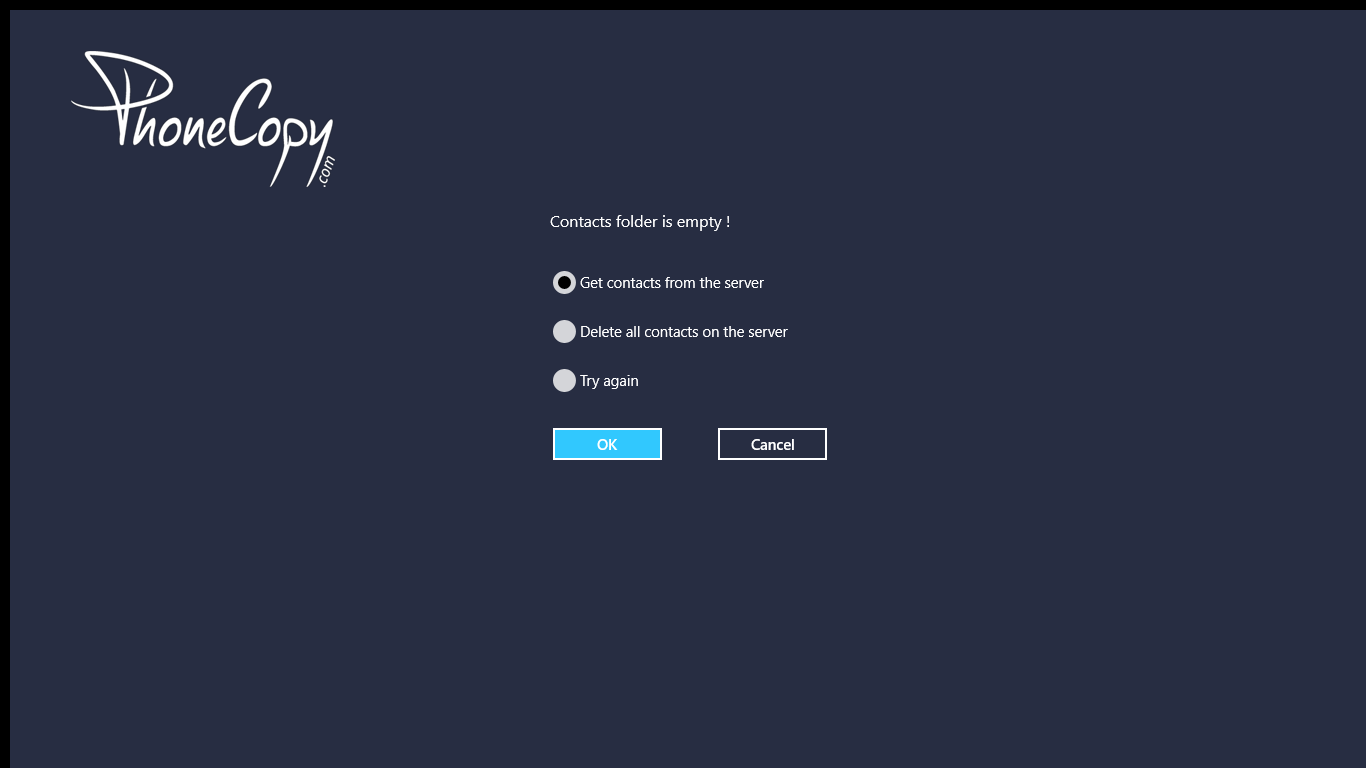
In case you don't have contact in selected source you will be noticed.
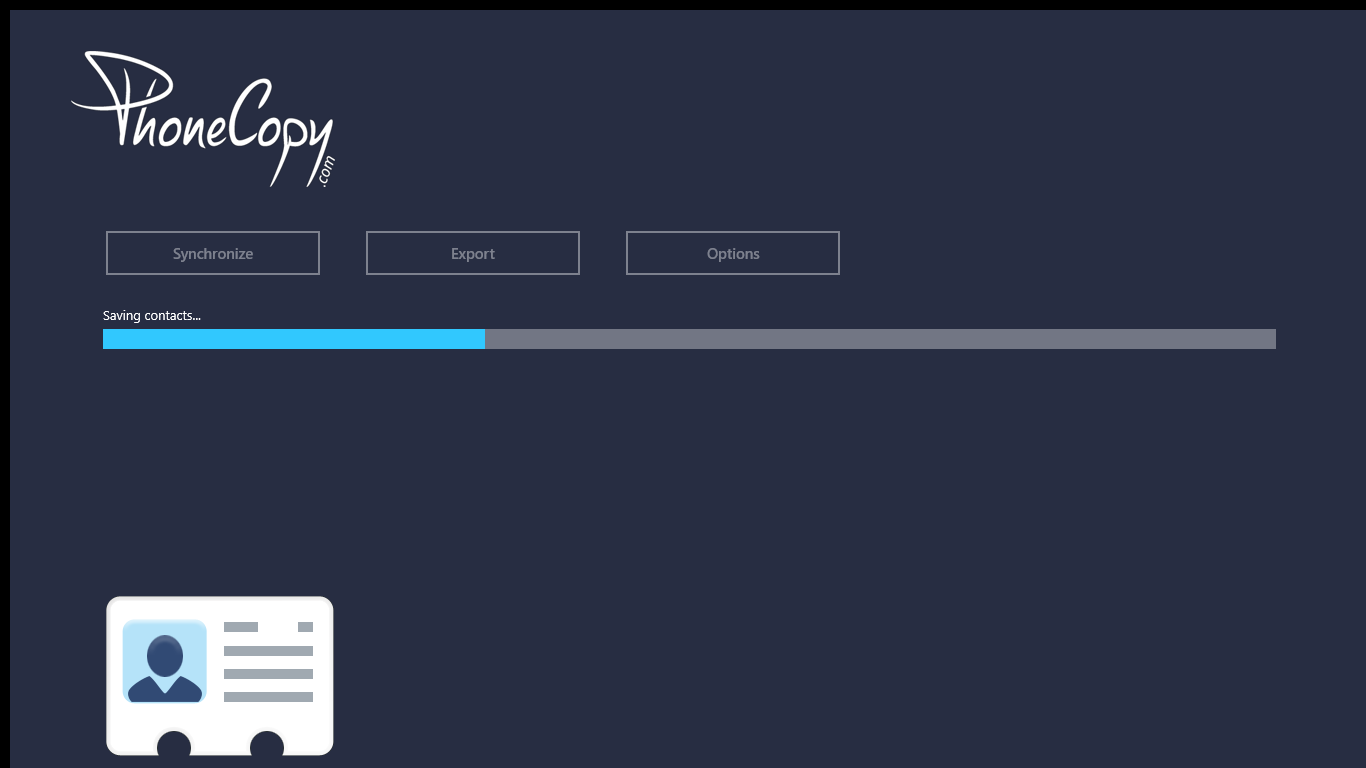
When you will add any contacts to selected directory you will see it synchronized to PhoneCopy after next sync.
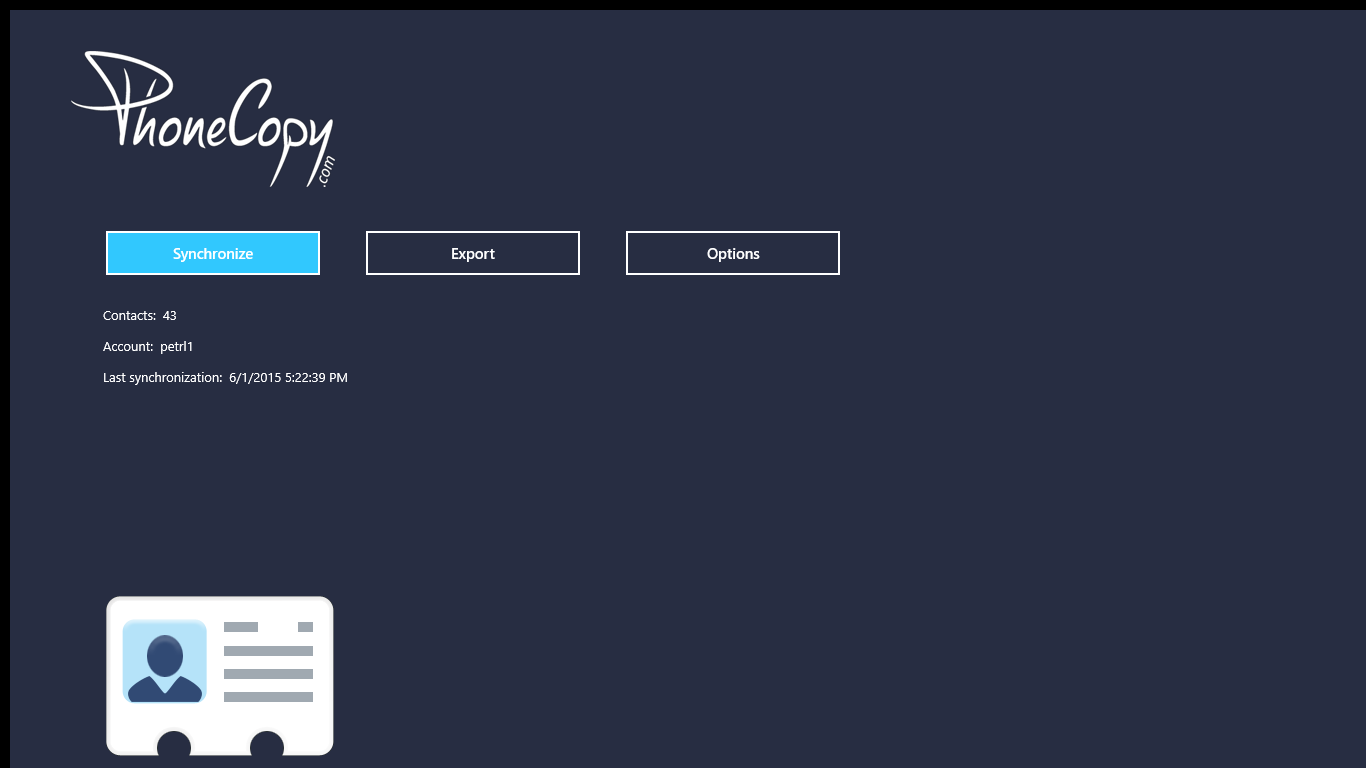
You can see page with information about your synchronization.
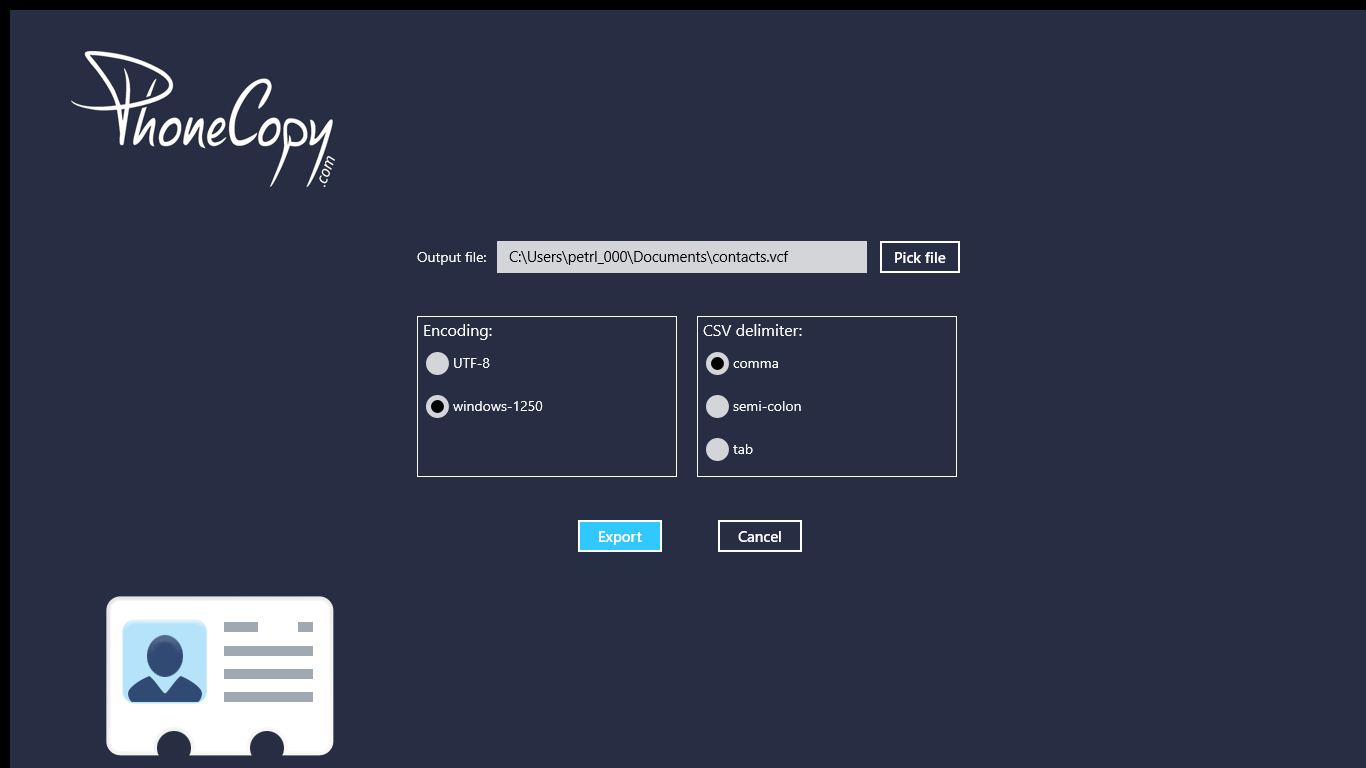
That is all there is to it. Your contacts are now backed up on PhoneCopy and you can access them from any browser whenever you need them.
Some additional tips:
PhoneCopy keeps a detailed sync history for your account. If you accidentally delete a contact, you can recover it from an earlier backup without losing any other data.